Encompass Condition Sync is a way for conditions in the eFolder within a loan in Encompass to be added, updated, or removed as follow-up requests in the Blend loan, without requiring users to work in both Encompass and Blend. Condition Sync leverages Encompass’ webhooks to receive an update into Blend services when there is a condition change on a loan. These webhooks are delivered by Encompass after the loan is saved in Encompass, however Blend will perform sync operations on a schedule to optimize performance.
Sync Conditions from Encompass to Blend
Currently, Condition Sync is a one-way process that will sync conditions added to Encompass to the Blend platform. The sync is queued when conditions are added, removed, or changed in Encompass and the loan is saved. The changes are synced to Blend every 30 minutes. Conditions synced from Encompass can only be routed to primary borrowers in Blend at this time.
The following fields are synced from Encompass conditions to Blend:
Name. The Name of the condition in Encompass will be used as the name of the follow-up in Blend
Internal Description. This field will be visible to borrowers as the “Message from your loan team” text on the follow-up task.
External Description. External Description is only available for Enhanced Conditions. If there is an External Description, this will appear as the “Message from your loan team” text on the borrower’s follow-up task. If nothing is in that field, the Internal Description text will be used instead.
Encompass Underwriting Conditions (v1)
With Encompass Underwriting Conditions, Blend will use a combination of fields to determine when conditions should be created as follow-ups. The default logic for creating and removing conditions (a.k.a. Follow-ups) in Blend for Encompass Underwriting Conditions are outlined below.
Create conditions: Follow-ups are created in Blend when Status is Requested or Re-Requested and Print Externally is true, and Prior To is Approval
Remove conditions: Follow-ups are removed from Blend when any of the following statuses are selected: Received, Fulfilled, Reviewed, Cleared, Rejected, or Waived or if Print Externally is unchecked.
Update conditions: Follow-ups are updated in Blend when description is modified
Blend recommends using the default logic, but this can be customized to an extent if required. Your Blend representative can help advise on the feasibility of custom Condition Sync logic.
Encompass Enhanced Conditions (v3)
Encompass Enhanced Conditions allows lenders to create custom condition statuses in Encompass. For lenders using Enhanced Conditions, Blend recommends creating a status named “Send to Blend,” which can be used as the indicator for when conditions should be created as follow-ups in Blend. This approach will ensure that conditions are only synced when this status is set.
The default logic for creating and removing conditions (a.k.a. Follow-ups) in Blend for Encompass Enhanced Conditions are outlined below.
Create conditions: Follow-ups are created in Blend when Status is Send to Blend
Remove conditions: Follow-ups are removed from Blend when any of the following statuses are selected: Received, Fulfilled, Reviewed, Cleared, Rejected, or Waived or if Print Externally is unchecked.
Update conditions: Follow-ups are updated in Blend when external description (if present) is modified, otherwise internal description.
Customers using Enhanced Conditions will need to configure the “Send to Blend” status in their Encompass instance. The status can be configured at the condition type level or for individual enhanced conditions, if it is desired to add this status on a specific set of conditions only. Reference ICE’s help center documentation for information on how to set up new statuses for conditions in Encompass.
Supported Condition Types
With Condition Sync, customers will be able to sync conditions to follow-ups in Blend that request documents from customers. Specifically, the following follow-up types are supported:
DOCUMENT_REQUEST
ASSET_STATEMENT
PAYSTUBS
TAX_RETURN
W2
Each of these follow-ups is documented in this Help Center article.
It is currently not possible to sync conditions that require borrowers to eSign documents, nor is it possible to sync conditions that are view-only.
Multiple Conditions and the Asset Statement Follow-up
Customers can map multiple conditions to the Asset Statement Follow-up in Blend, however the recommended approach is for customers to create a single condition that will be specifically used for linking assets. If multiple conditions are mapped to the Asset Statement Follow-up and more than one of those are requested of the borrower, then the follow-up will only appear once in the borrower’s task list. However, the follow-up will loop and the borrower will be asked to confirm their asset account data multiple times.
Follow-Up Mapping
For both Underwriting and Enhanced Conditions, customers can determine to which eFolder in Encompass documents uploaded by borrowers are mapped. In order to facilitate document mapping, it will be possible to define the Blend document type associated with each follow up and then the resulting uploads will be mapped according to existing integration configurations for document mapping.
Blend Intelligence Follow-Ups & Condition Sync
Blend Intelligence refers to logic that has been built into the Lending platform, which automatically adds workflows (e.g. follow-ups) to a Blend application after completion. By default, follow-ups that have been automatically added to the loan by Blend Intelligence will be deleted if they are not completed by the borrower by the time the Condition Sync is initiated. The reason for deleting these automatic follow-ups is because Blend currently does not push these Blend Intelligence follow-ups to Encompass, so underwriters will not have visibility into which conditions / follow-ups have already been delivered to the borrower. The deletion policy was designed as a way to prevent duplicate follow-ups that may be ordered by loan team members directly in Encompass.
Only unfulfilled follow-ups will be removed. Completed follow-ups - including those that are completed by the borrower but are pending review by the loan team - will not be deleted, nor will any follow-ups that were manually requested in the Blend platform by the loan team.
Customers have the option to disable the deletion of incomplete follow-ups due to the sync, which will allow all conditions to sync to Blend regardless of which follow-ups have already been added to the loan. Please use the workbook to indicate your preference to your Blend representative prior to beginning the enablement process.
Condition Sync Walkthrough
Loan Team View
Conditions are added, updated or removed as follow-ups in Blend when they are assigned to certain statuses or when specific fields are updated in Encompass. These statuses and fields are listed in earlier sections of this document (v1 and v3). The statuses/fields must be updated and the condition must be saved before the sync will initiate.
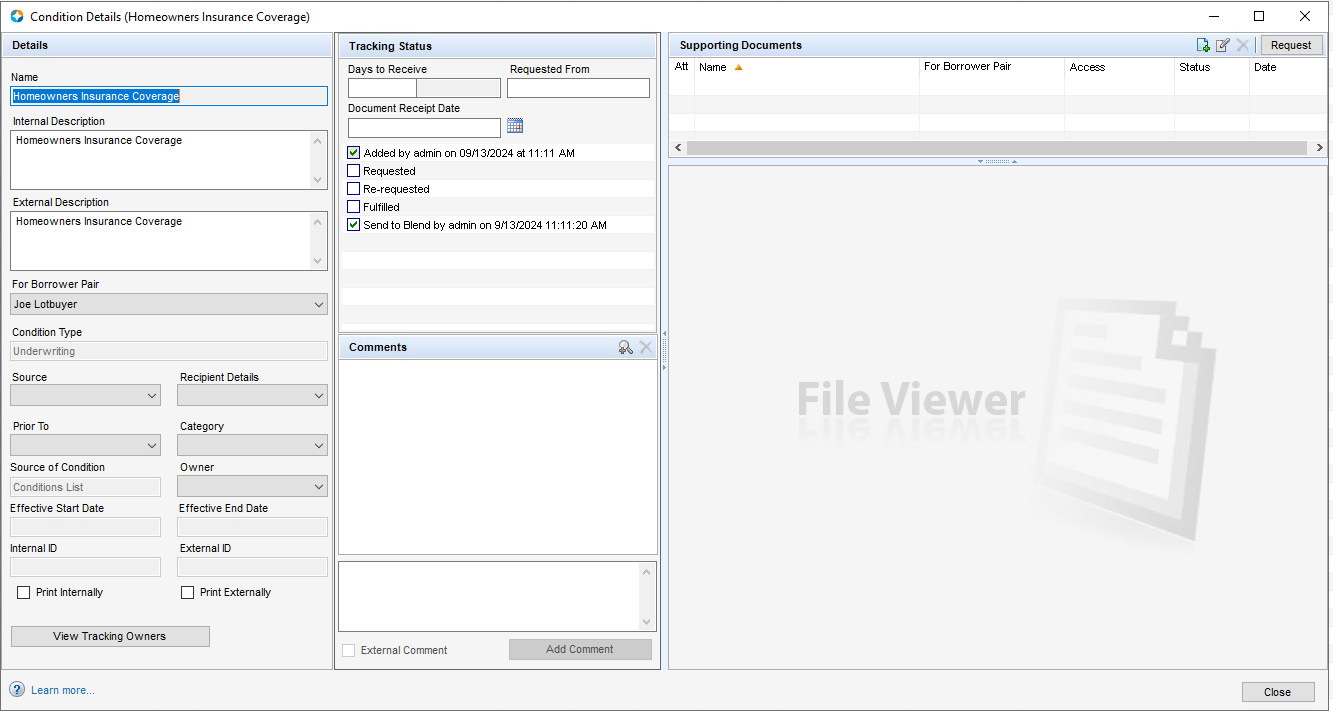
Screenshot of the condition details page in the desktop version of Encompass
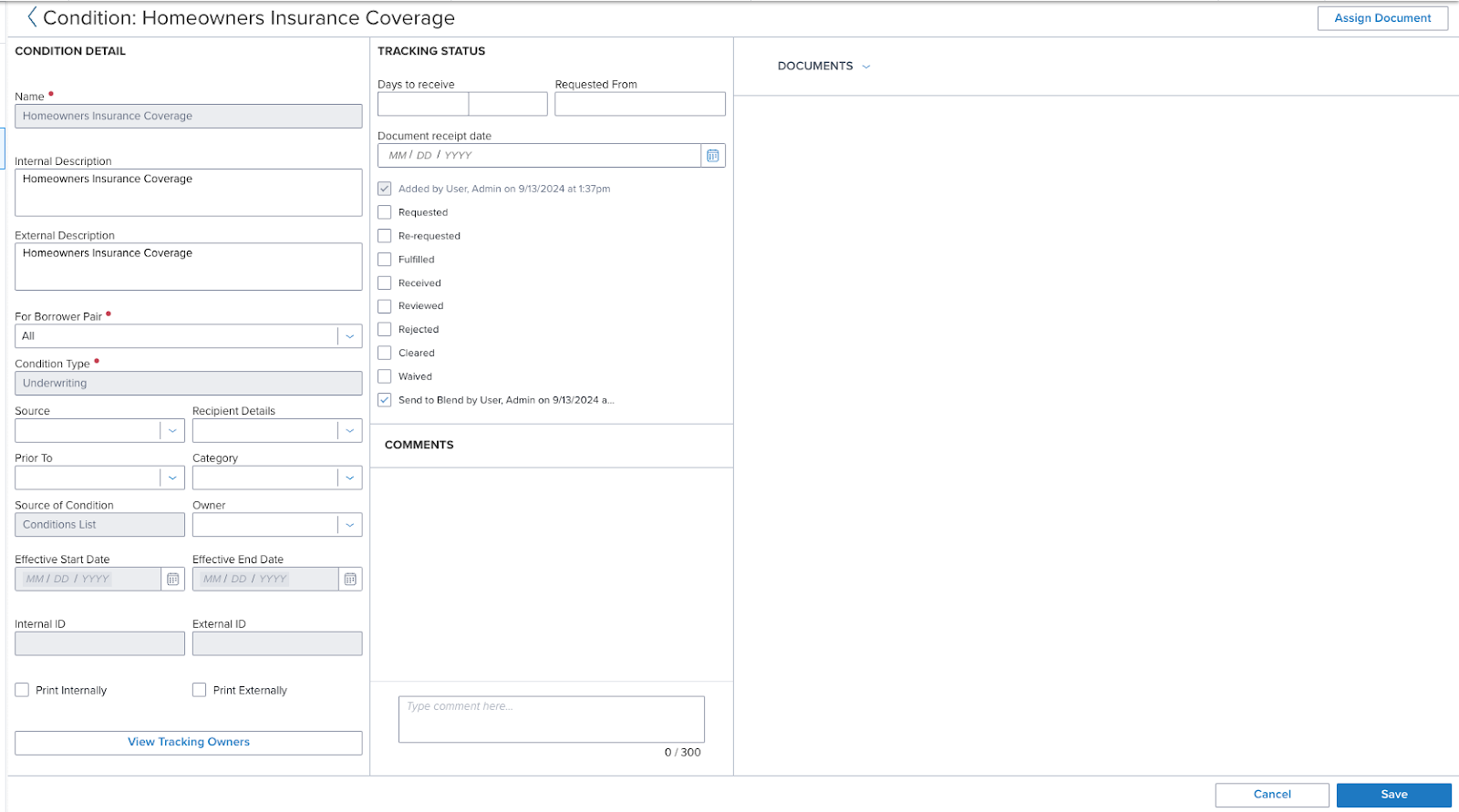
Screenshot of the condition details page in the web version of Encompass
When the sync is complete, Blend will generate follow-up tasks for the primary borrower on the loan. By default, the sync will occur after the loan is saved in Encompass. Blend will also perform sync operations every 30 minutes in production environments after the initial save in Encompass.
The follow-up tasks can be tracked in the Follow-Ups tab of the lender application.
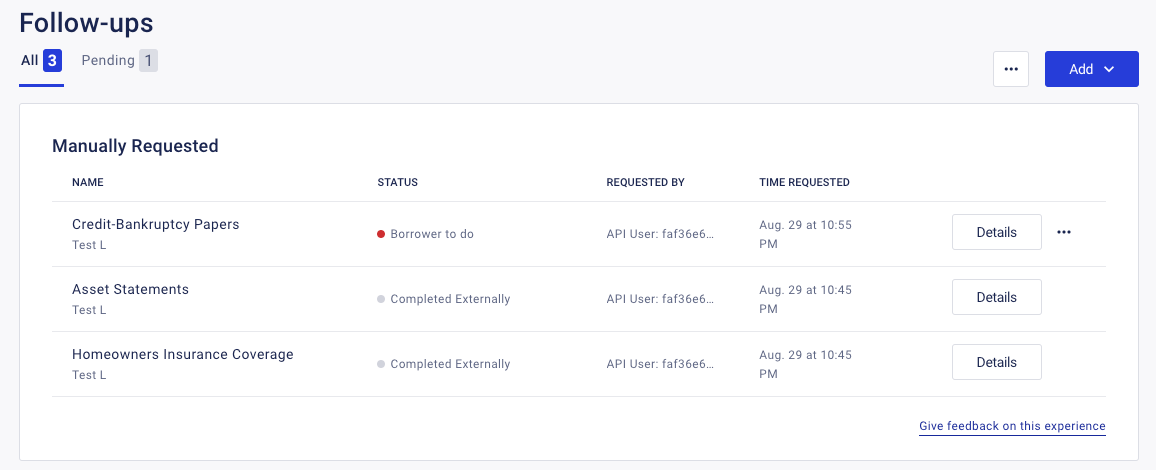
When the follow-up is completed, document(s) that the borrower uploaded will sync back to Encompass following the mapping guidance that was configured for that condition.
Borrower View
When conditions sync to Blend, any incomplete follow-ups that were automatically added to the loan by Blend Intelligence and sent to the borrower will be deleted from the Tasks section. The deletion occurs as soon as the sync is triggered, so it is possible that the borrower’s task list will be temporarily empty until the sync completes. If customers have opted to disable the deletion mechanism, then all new follow-ups will be added to existing follow-ups in the borrower’s tasks after the sync completes.
After the sync completes, the new follow-ups will appear as Tasks in the borrower’s home page.
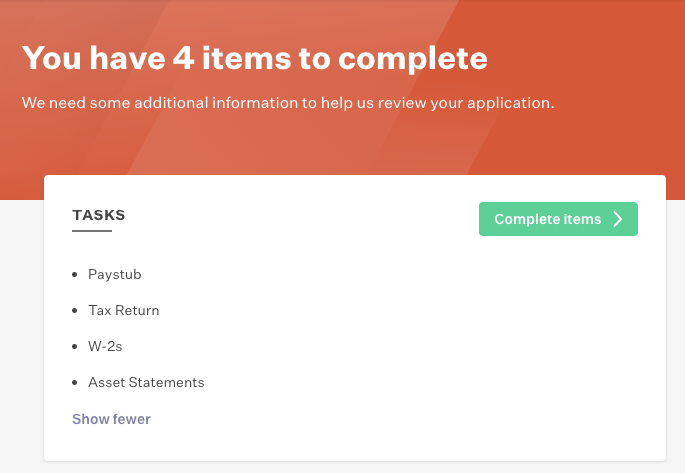
Clicking “Complete Items” from the main page or the “Tasks” tab will bring borrowers to the tasks list. Borrowers can complete each follow-up task by clicking on each one and following the prompts. For synced conditions, the “Message from your loan team” section of the task will display the description in Encompass. Specifics about the description fields that are used are outlined in earlier sections of this document (v1 and v3).
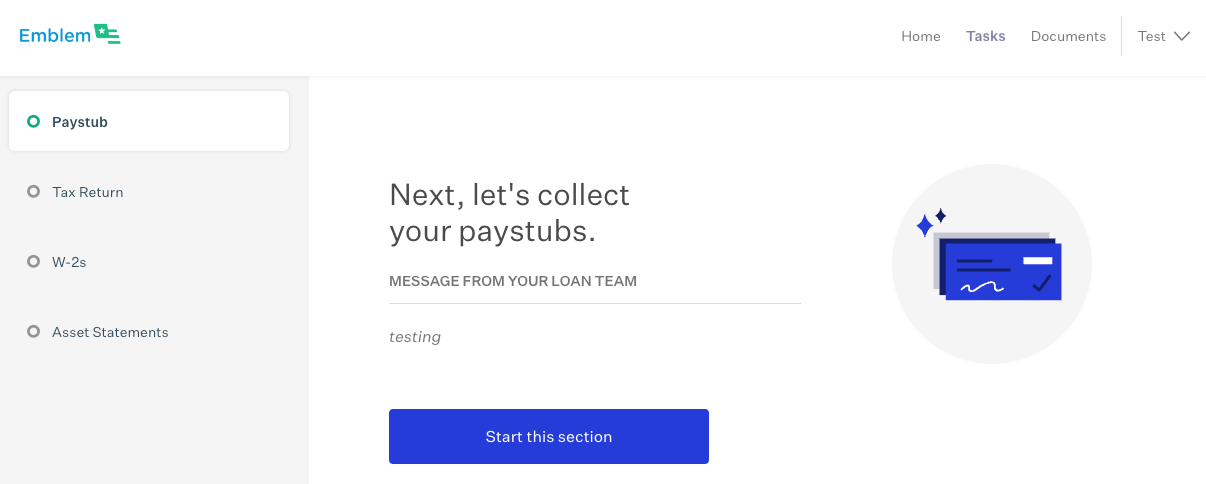
For Paystub, Tax Return and W-2 follow-ups, borrowers will be asked to upload their respective documents. The next few subsections will show the screens that the borrower will see when completing these tasks. These subsections are to be used for reference only - they cannot be customized as part of the Encompass Condition Sync feature.
Asset Statement follow-up
The borrower can complete the Asset Statement by connecting to their asset account(s) or by manually uploading their bank statements. For the manual route, the first page of the task will look like the screenshot, below. The “Message from your loan team” section of the task will display the description in Encompass. The borrower will click “Start this section” to begin.
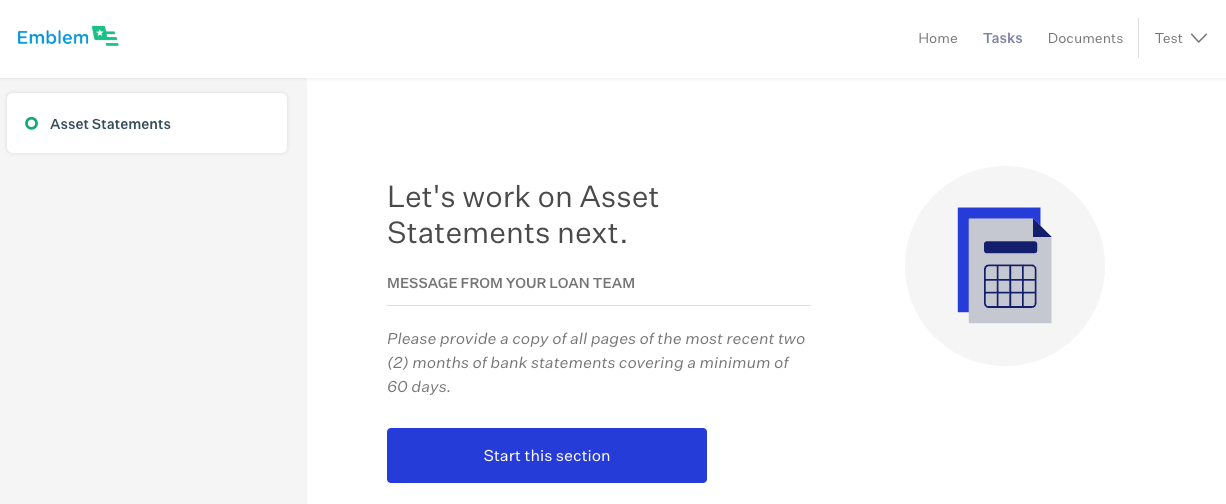
The borrower will click “Upload” from the next page to progress.
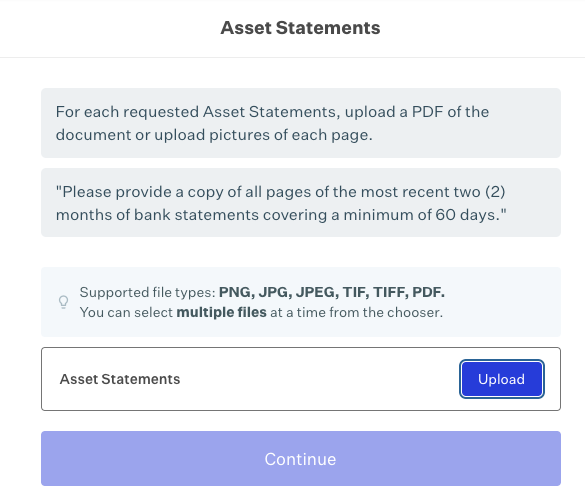
This will open a modal that will allow borrowers to upload documents. The modal shows the supported file types. The borrower will need to upload at least one document, however they can use “Add another file” to add multiple documents.
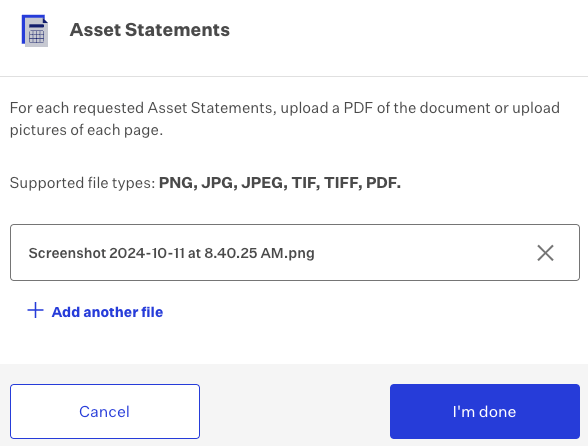
Once the borrower has uploaded at least one file, they will click “I’m done” to exit the modal. The task will be completed and will be removed from their task list.
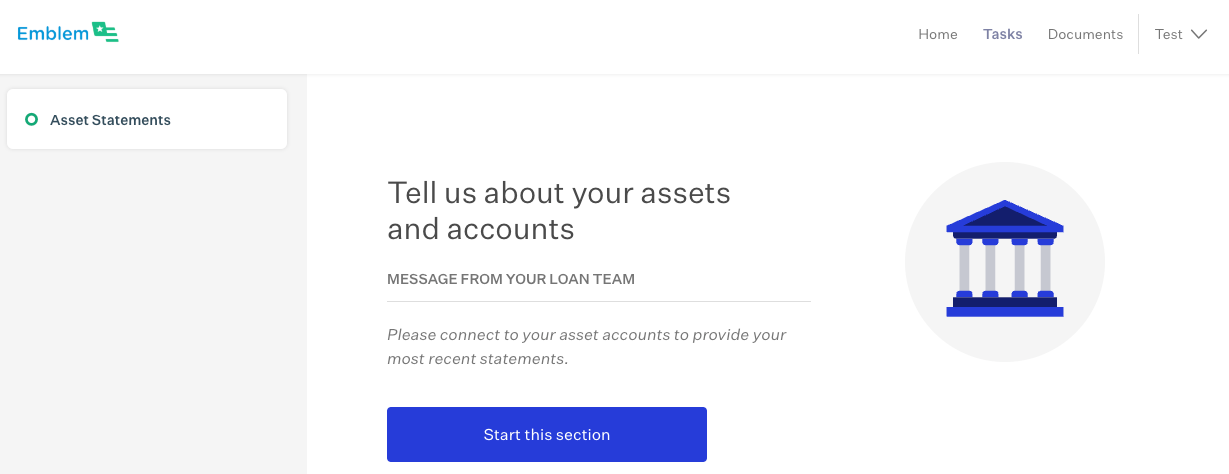
If the loan team uses the follow-up to request the borrower connect to their asset accounts, then the first page of the task will look like the screenshot, below. The “Message from your loan team” section of the task will display the description in Encompass. The borrower will click “Start this section” to begin.
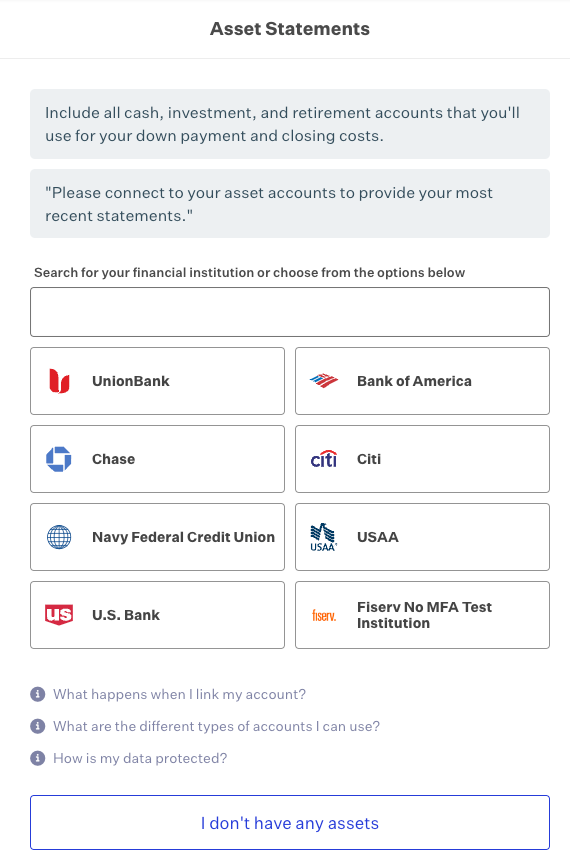
On the next page, the borrower will be asked to find and connect to their asset accounts. If the borrower’s financial institution does not appear in the first set of tiles, they can use the search bar to find the right one. Clicking “I don’t have any assets” will immediately complete the task.
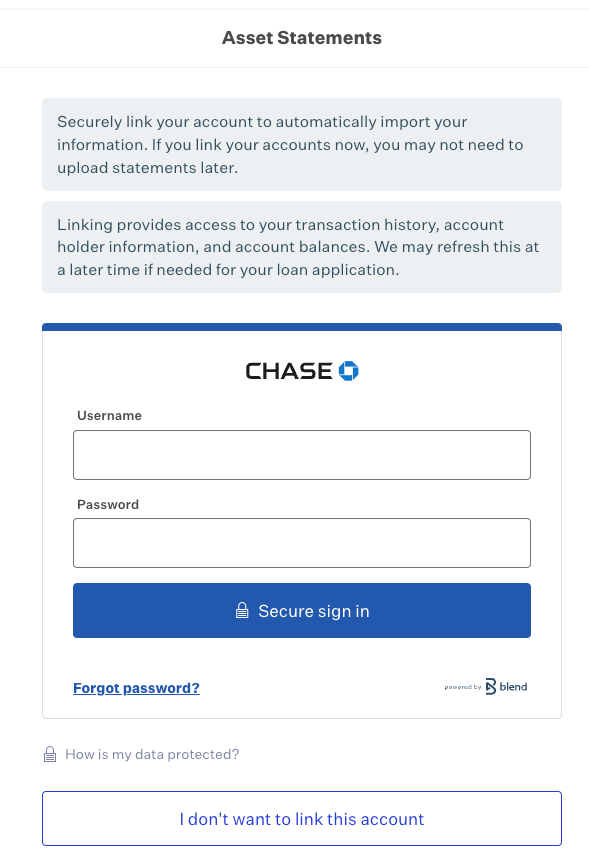
Once the borrower selects their financial institution, they will be asked to enter their username and password.
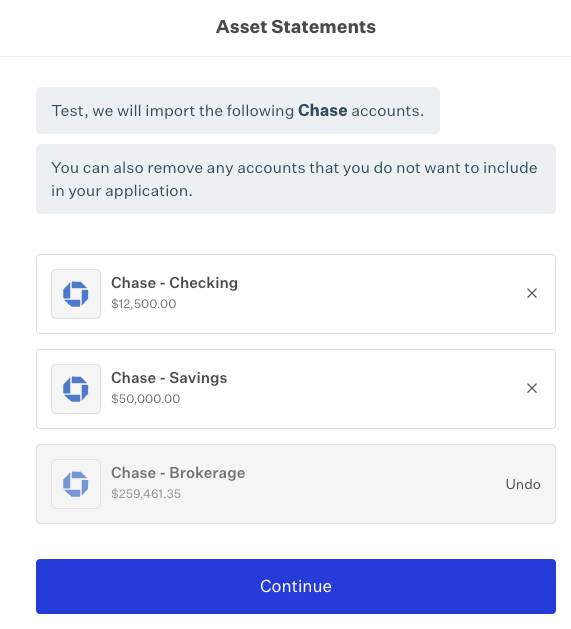
The borrower’s accounts with that financial institution will be displayed. They can use the “x” icons to remove accounts they do not want to include. When done, they will click “Continue” to proceed.
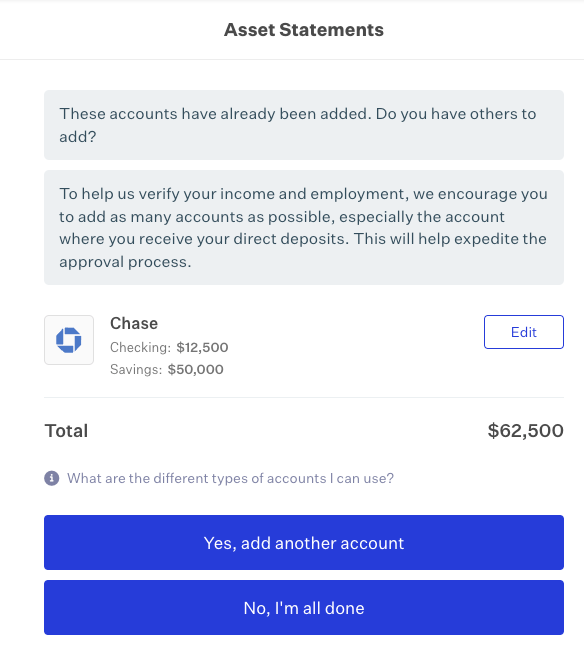
The next screen will summarize the accounts for the financial institution, and provide the opportunity for the borrower to connect to more accounts. The borrower will click “Yes, add another account” to add more accounts. They will click “No, I’m all done” to complete the follow-up task.
Paystub follow-up
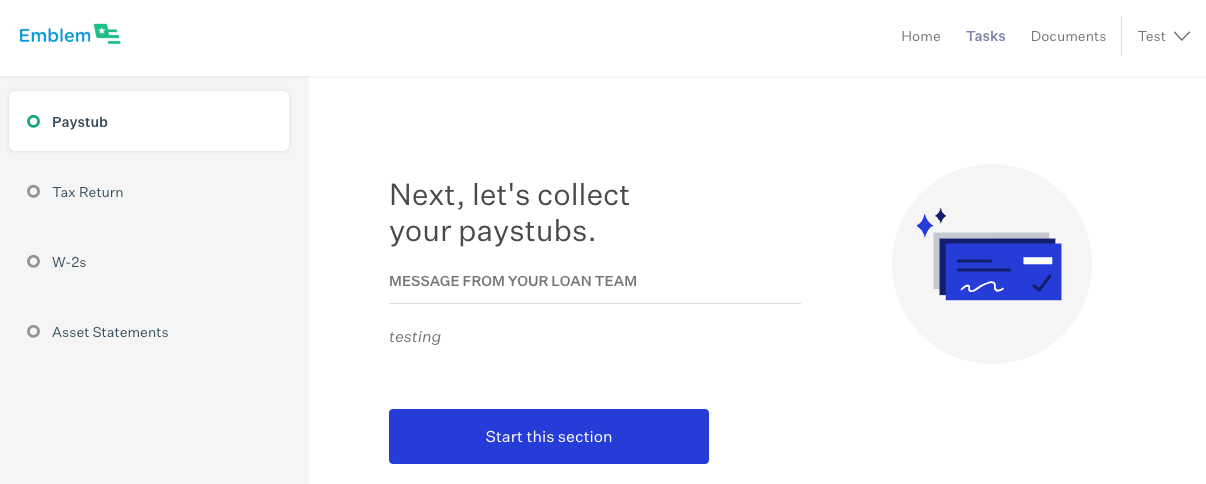
The first page of the Paystub follow-up task in Blend is below. The “Message from your loan team” section of the task will display the description in Encompass. The borrower will click “Start this section” to begin.
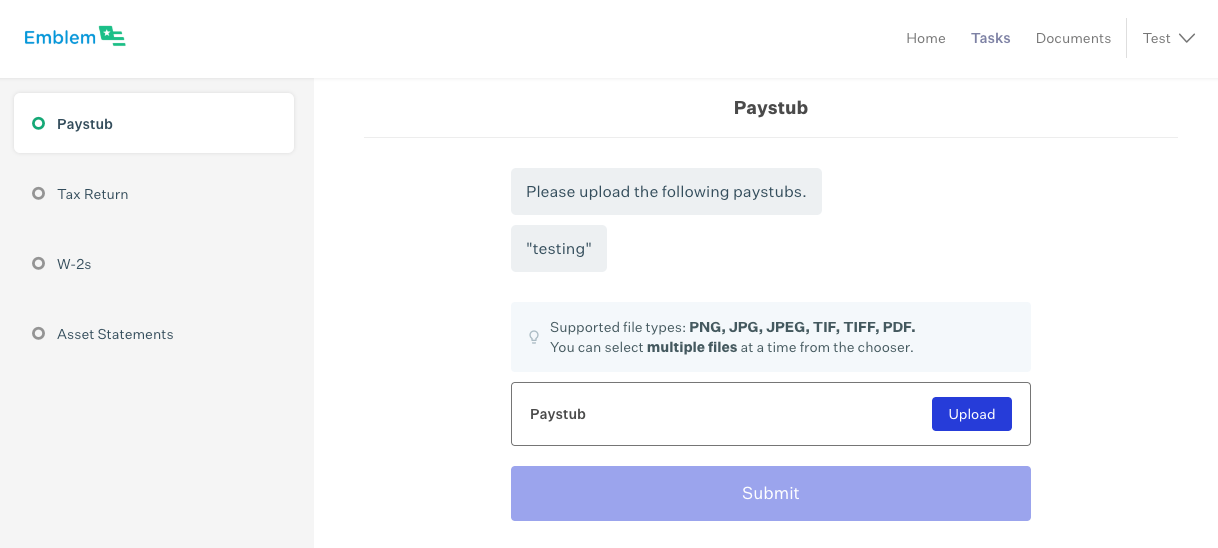
The borrower will click “Upload” from the next page to progress.
This will open a modal that will allow borrowers to upload documents. The modal shows the supported file types. The borrower will need to upload at least one document, however they can use “Add another file” to add multiple documents.
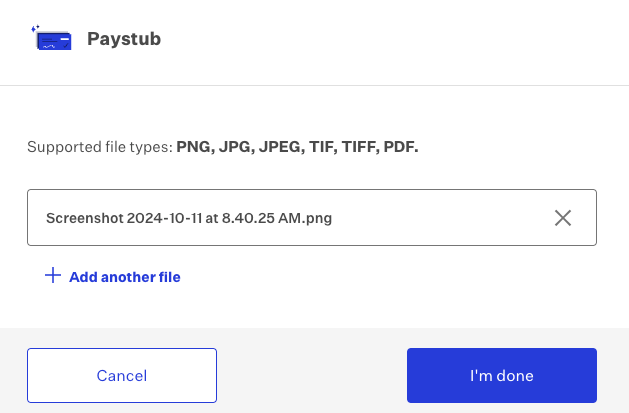
Once the borrower has uploaded at least one file, they will click “I’m done” to exit the modal. The task will be completed and will be removed from their task list.
Tax Return follow-up
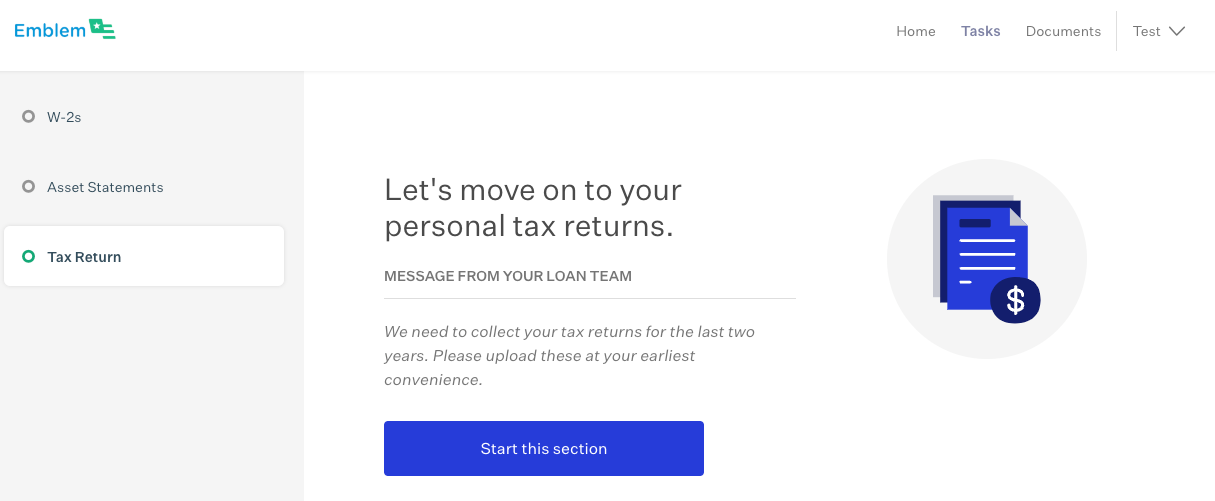
The first page of the Tax Return follow-up task in Blend is below. The “Message from your loan team” section of the task will display the description in Encompass. The borrower will click “Start this section” to begin.
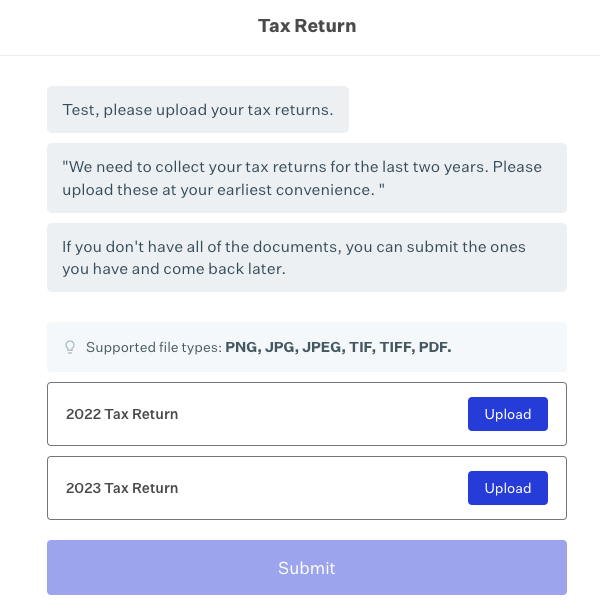
If the condition requires multiple tax returns, each year requested will have its own upload. The borrower will need to complete the Upload for each year in order to complete the task.
The borrower will need to complete the Upload for each year. Once each row is completed, the Submit button will be active.
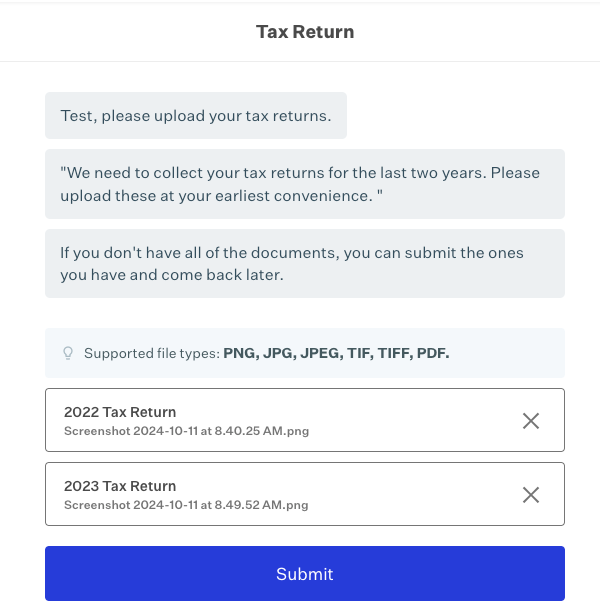
When the button is clicked, the task will be completed and removed from the Tasks list.
W-2s follow-up
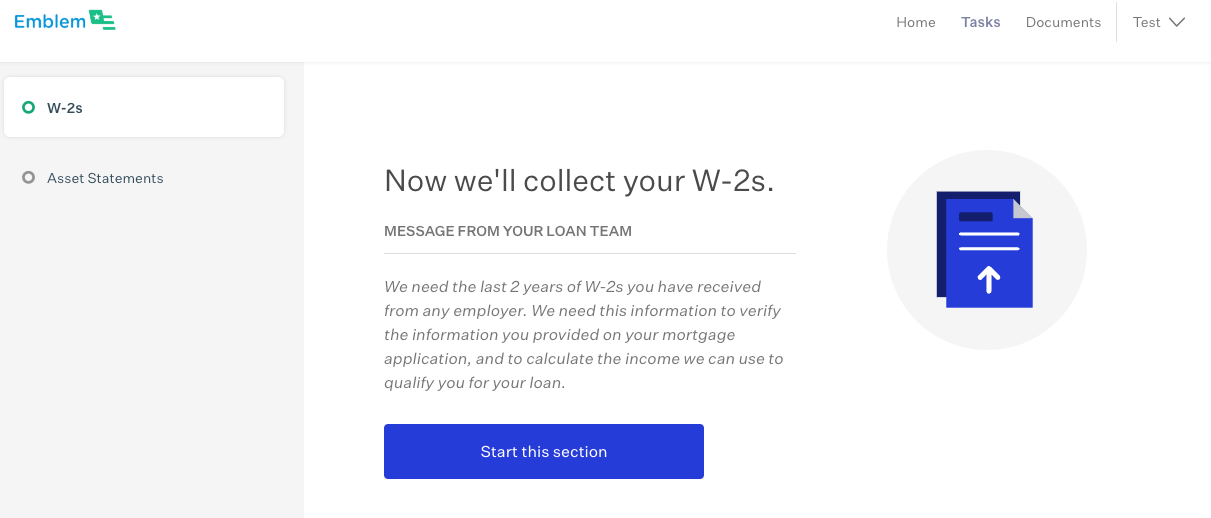
The first page of the W-2s follow-up task in Blend is below. The “Message from your loan team” section of the task will display the description in Encompass. The borrower will click “Start this section” to begin.
If the condition requires multiple W-2s, each year requested will have its own upload. The borrower will need to complete the Upload for each year in order to complete the task.
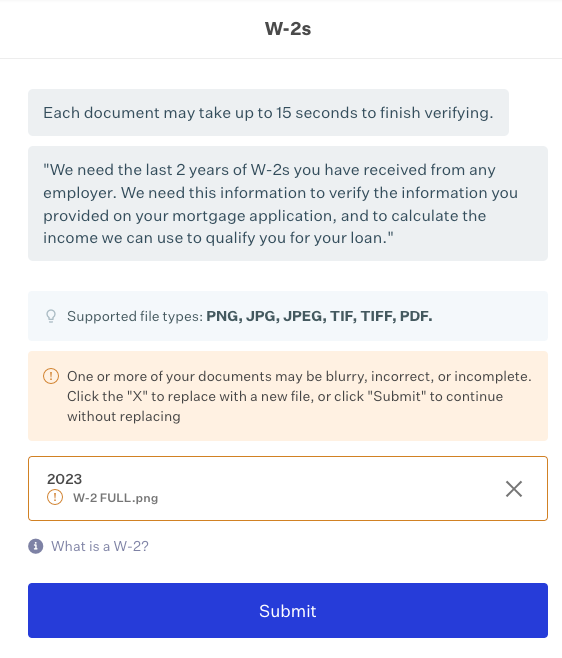
Once each row is completed, the Submit button will be active. When the button is clicked, the task will be completed and removed from the Tasks list.
Co-Borrowers and TPRs
Conditions that are synced to Blend will only route to the primary borrower on the first borrower pair as of today.
Was this article helpful?
That’s Great!
Thank you for your feedback
Sorry! We couldn't be helpful
Thank you for your feedback
Feedback sent
We appreciate your effort and will try to fix the article