The Referral Partners feature is available for use in mortgage products. Currently, the Referral Partners feature supports the following types:
Realtors
Home Builders
Credit unions
Lender users can add referral partners via the Account settings or the Setup pages. Any referral partner profile that is created by a lender user in Blend will be able to use a unique URL that directs potential borrowers to a landing page that is branded to the lender and presents information about the referral partner and loan officer. The Referral Partners feature requires the use of Blend’s Loan Officer (LO) Pages feature.
Referral Partners in the Borrower Application
Borrowers who follow the Referral Partners link will land on a page that provides both the referral partner and loan officer.
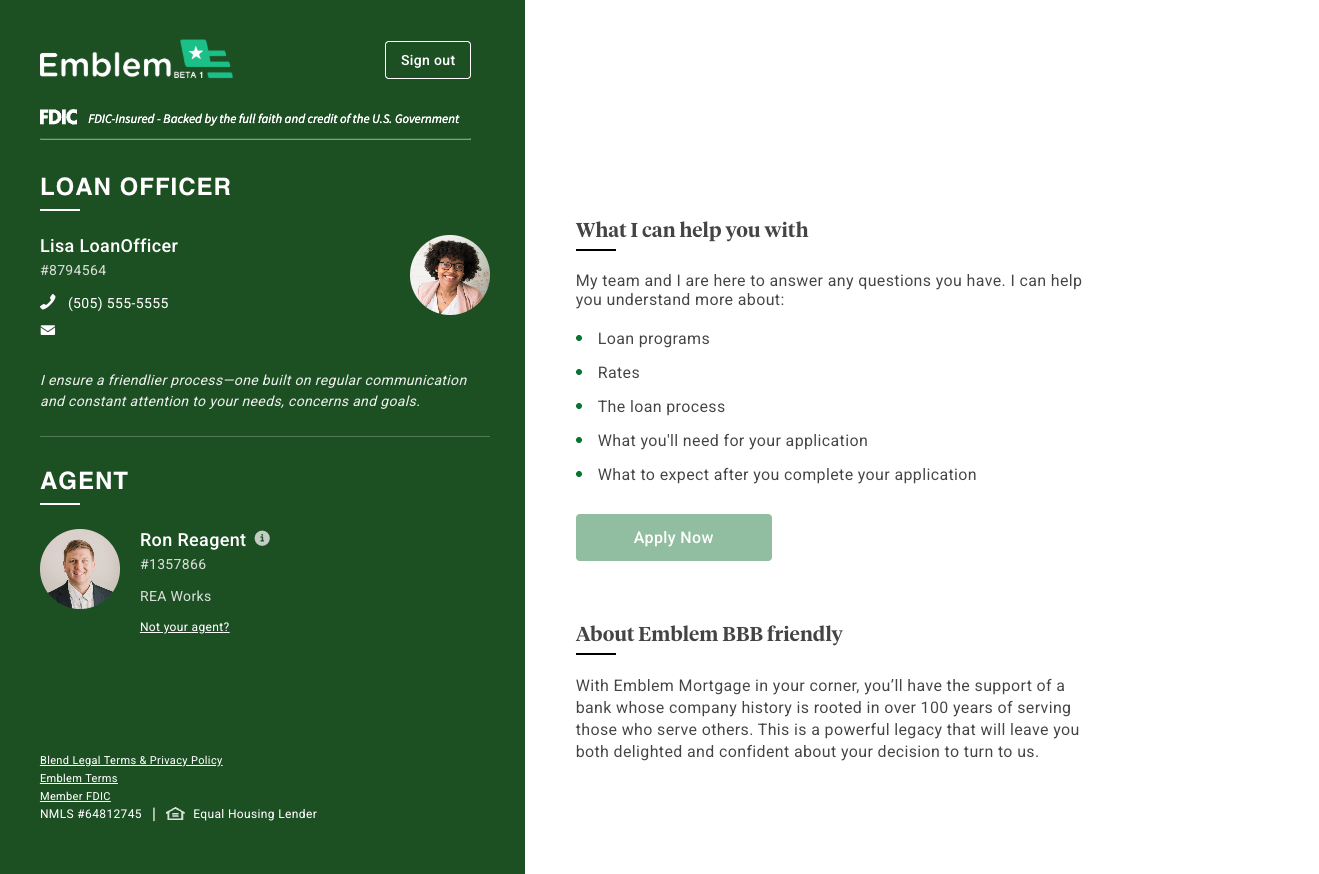
Loan Officer page with visible referral partner
Clicking the call-to-action button on this page will allow borrowers to create a new application, starting at the Journey Chooser screen.
When borrowers enter the Getting Started section of the application, they will be presented with the loan officer’s contact information.
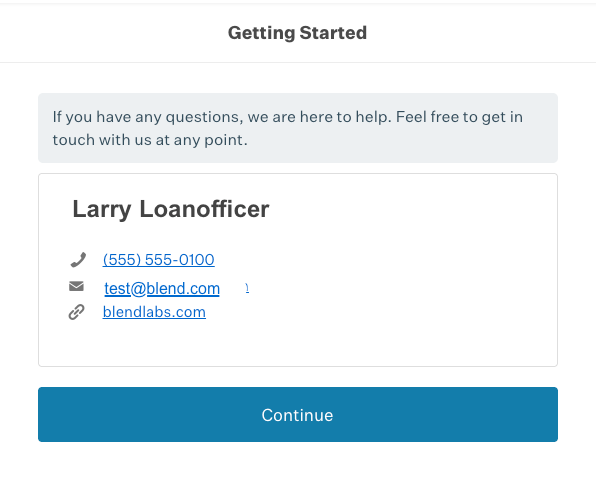
The loan officer’s contact information is presented again to the borrower at the start of the application
The loan officer’s contact information is also displayed in the Contact Us sidebar, which will pop out from the right side of the screen if the chat bubble icon is clicked from the bottom right corner of the application.
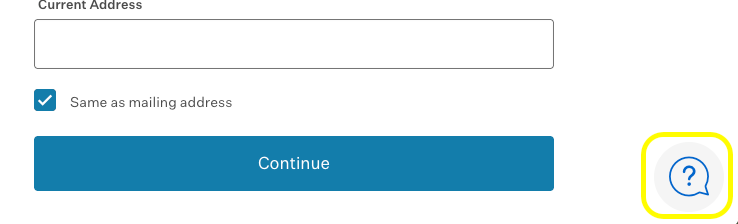
The chat bubble icon in the bottom right corner of the application
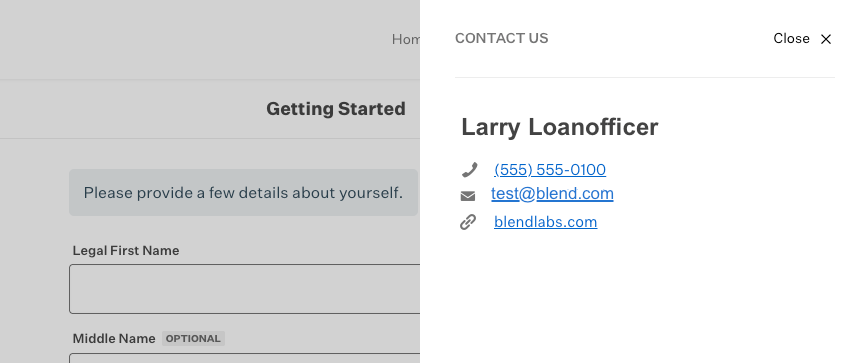
Contact Us sidebar, which appears after the chat bubble icon is clicked
Borrowers will see the contact information for both the referral partner and the loan officer in the Borrower Home.
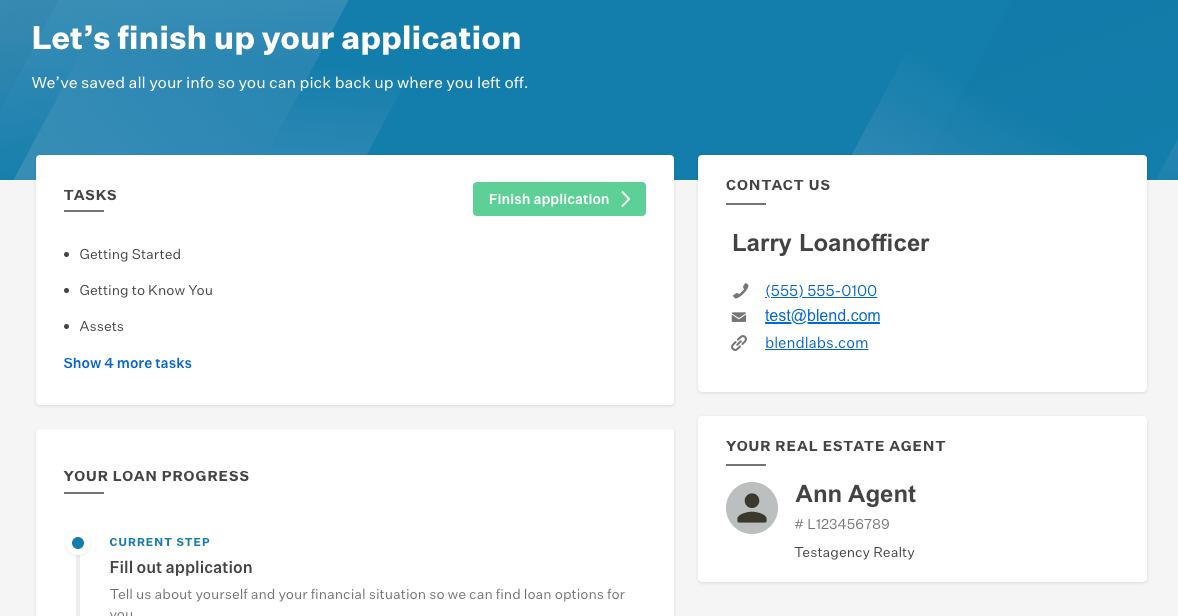
Referral Partners contact info will appear in a separate card on the Borrower Home
Referral Partners in the Lender Workspace
Referral Partners are managed (added, edited, disabled) at the user level through the Accounts settings (Your Settings → Account → Referral Partners).
Retrieving the Referral Link
Once a referral partner has been created, a unique Referral Link will be created and assigned to the referral partner. This Referral Link will direct potential borrowers to a co-branded landing page that features both the referral partner’s and loan officer’s contact information.
Loan officers may retrieve the Referral Link by signing into their Blend environment and navigating to Your Settings → Account → Referral Partners.
Once there, locate the referral partner (users can use the “Search Partners” bar at the top of this page to quickly find the partner), and then click “Copy Link”.
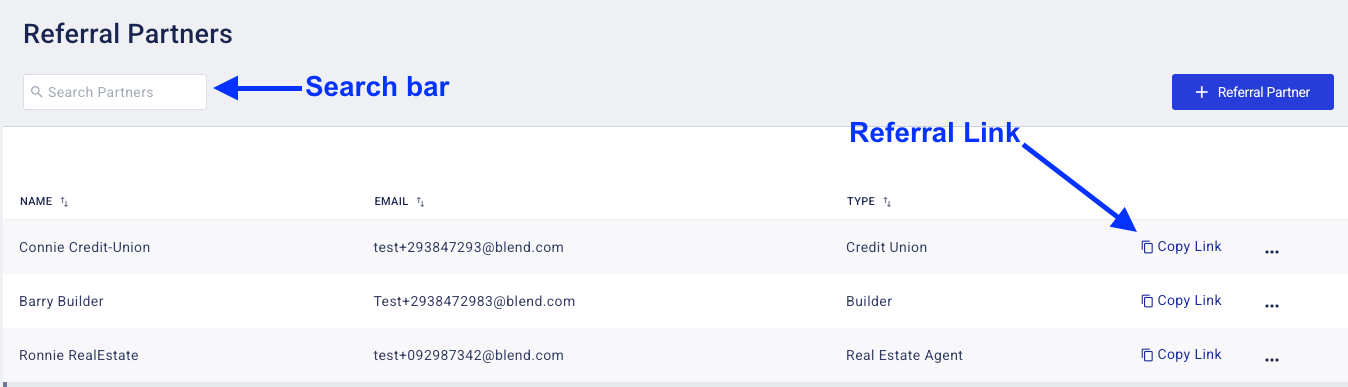
Use the search bar to find the referral partner, and then click “Copy Link” to get to the Referral Link
A pop-up modal will appear, which will instruct users on how to share the link. Users can either copy the link to their clipboard (using the “Copy Link” link) or share the link through email (“Share in mail”).
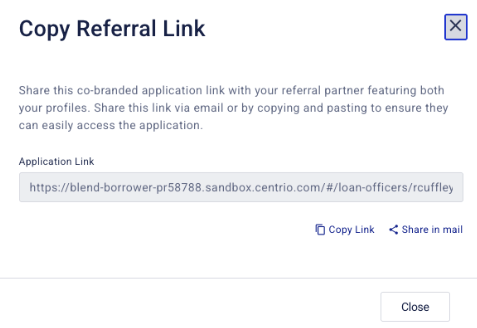
Copy Referral Link modal
Clicking “Share in mail” will create an email draft using the user’s default email provider. The drafted email will include the Referral Link.
New applications
Applications created using the Referral Partner workflow will be automatically assigned to the LO. Referral Partner contact information will be pre-filled in the Contacts section of the lender application.
Administrating Referral Partners
Note: In order to add, edit, or disable referral partners, users must have the Assign referral partners permission set to Always for their user account. Referral partner administration can be done within the Blend environment and does not require intervention from Blend Support.
Referral Partners are configured at the user level from a user’s Account settings. Users can do this on their own by navigating to Your settings → Account → Referral Partners.
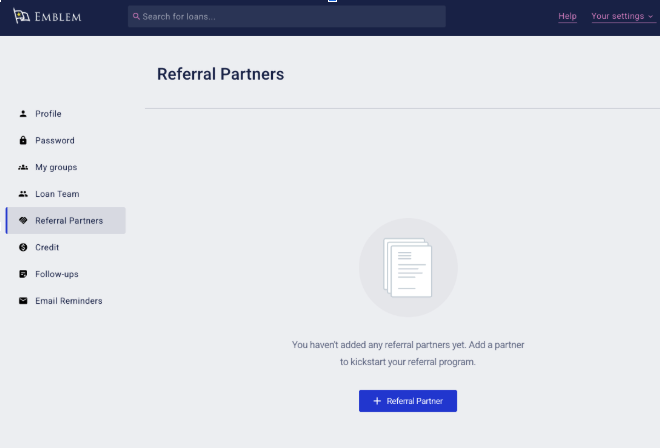
Adding Referral Partners
Users will click “+ Referral Partner” to begin the profile creation process. This will bring up a modal and will allow users to select the partner type and add the partner’s information.
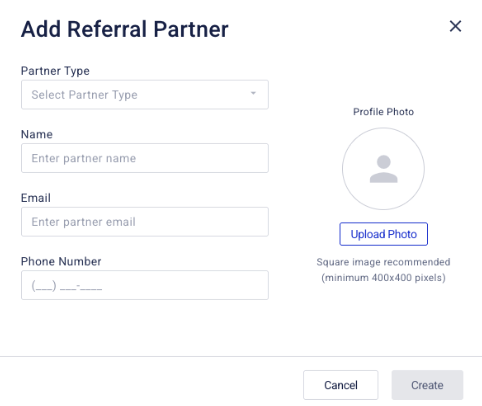
Add Referral Partner modal
The information requested will vary by Partner Type. All data fields are required for creation of referral partners, unless otherwise indicated. Adding a profile photo is always optional.
Required information for creation of Real Estate Agents:
Name
Email
Phone Number
License Number
Brokerage Name
Required information for creation of Builders:
Name
Email
Phone Number
License Number (optional)
Required information for creation of Credit Union:
Name
Email
Phone Number
License Number (optional)
Once the required information is added, the “Create” button will become active and users can click this to finish creating the referral partner. The newly-created profile will be added to the table.
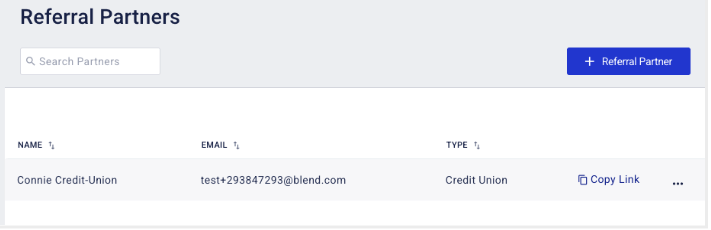
Editing Referral Partners
Referral partners can be edited or disabled by clicking on the ellipsis button in the far right column.
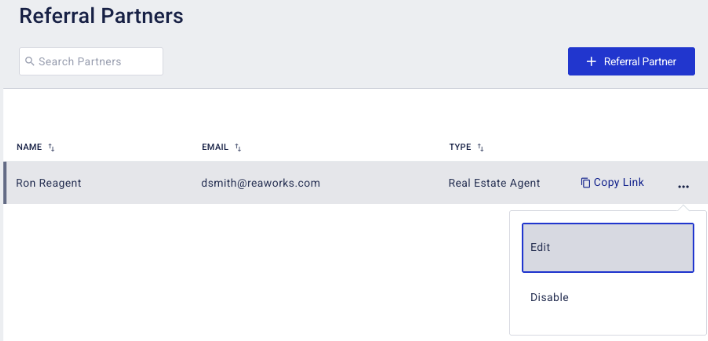
Selecting “Edit” will open a modal that will allow users to edit the information for that partner.
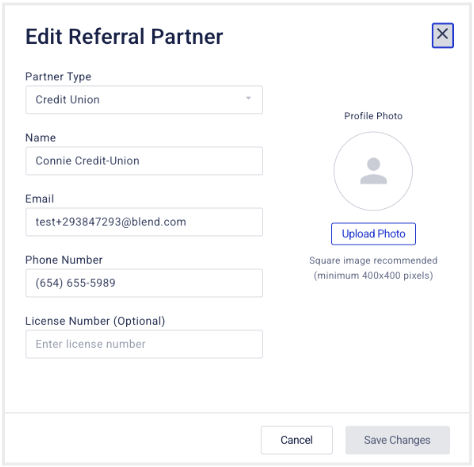
Edit Referral Partner modal
Disabling Referral Partners
Referral partners can be added or disabled by clicking on the ellipsis button in the far right column. Selecting “Disable” will disable the partner link. Users will see a pop-up modal asking them to confirm the action, and informing them of what will happen if borrowers try to access the link while it is disabled.
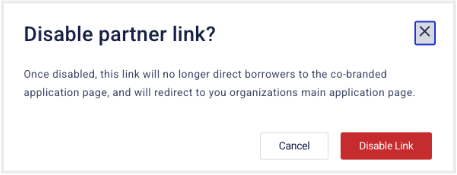
Disable partner link modal
Any borrowers who follow the link after it is disabled will be redirected to the lender’s main application page. This action is irreversible, so users should take care to avoid disabling partner links unless absolutely necessary.
Partners with disabled referral links will remain visible in this list, however the profile will no longer be editable, and the referral link will no longer be accessible. Users who attempt to follow a disabled referral link will be redirected to the LO Page, which will not show the referral partner.
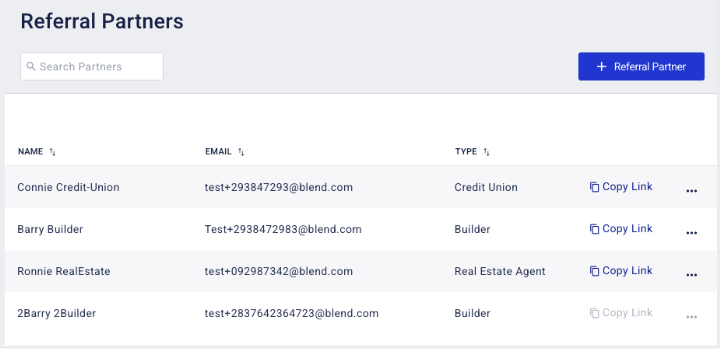
List of Referral partners, with one partner disabled
Configuring Disclaimer text
Note: In order to configure disclaimer text for referral partners, users will need the Edit client-facing system config permission set to Always. Configuring disclaimer text can be done within the Blend environment and does not require intervention from Blend Support.
The disclaimer text is an optional feature. If configured, borrowers will see this disclaimer text if they hover over the “i” icon next to the referral partner’s name on the Loan Officer Page.
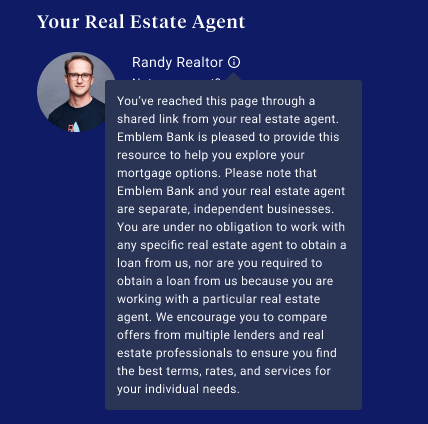
Disclaimer text is configurable by referral partner type. This means the same disclaimer text configured for Credit Unions will be used for all partners that are created as the Credit Union partner type, the text configured for Real Estate Agents will be used for all partners that are created as the Real Estate Agent partner type, the text configured for Builders will be used for all partners that are created as the Builder partner type, and the text configured for credit unions will be used for all partners that are created as the Credit Union partner type.
The disclaimer text is configurable at the tenant level from the Setup Admin panel. In order to configure disclaimer text, navigate to Your settings → Setup → Referral Partners and click “Settings”.
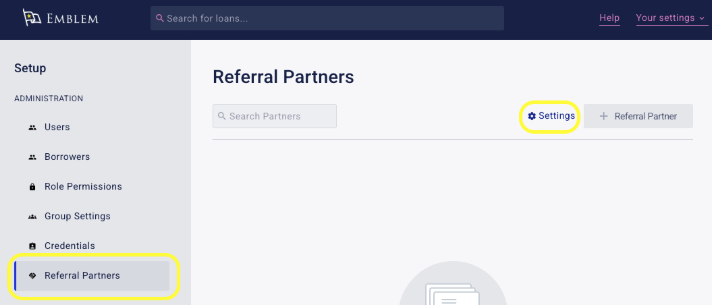
After you click on “Settings” a modal will appear that will allow user admins to configure disclaimer text for Real Estate Agents, Builders, and Credit Unions.
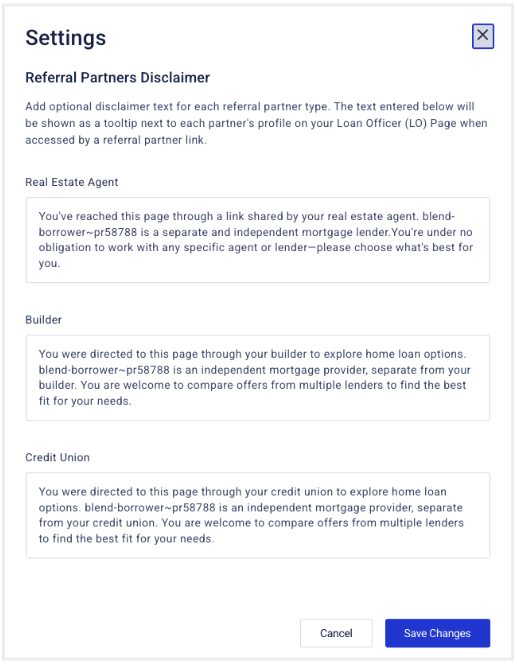
Referral Partners Disclaimer modal
Process to enable this feature
Reach out to Blend Support or your Blend Customer Success Manager in order to enable this feature in your environment(s). After this one-time configuration by Blend Support, administration of referral partners and disclaimer text can be completed by users from within their Blend environment.
Compliance Considerations
Lenders are responsible for managing their referral partner relationships in a compliant manner, including ensuring appropriate licensing and fair lending practices.
To support transparency, Blend provides configurable disclaimer language that can be surfaced to borrowers via an “i” icon next to the referral partner’s name on the Loan Officer Page (Please refer to “Configuring Disclaimer Text” section). This optional disclaimer helps clarify the nature of the referral relationship and supports lenders in meeting disclosure requirements.
FAQs
Are Referral Partners configured at the tenant level or user level?
Referral partners are configured at the user level in the Account settings.
Can there be more than one referral partner per link / application?
There can only be one referral partner per link / application.
Was this article helpful?
That’s Great!
Thank you for your feedback
Sorry! We couldn't be helpful
Thank you for your feedback
Feedback sent
We appreciate your effort and will try to fix the article