Embedded PPE, also called "External Session" or "Polly iframe", is a Blend feature that lets loan officers seamlessly access Polly directly from within Blend. Instead of switching between systems, loan officers click a button in Blend to open Polly in a new browser tab, explore loan options, and bring pricing data back into Blend automatically.
You may see this referred to as an "iframe" in Blend or Polly documentation, that's Polly's own terminology for this type of embedded pricing experience. Polly actually opens in a new browser tab rather than being embedded directly in the page, but the experience is designed to feel like one connected workflow: a bridge between Blend and Polly that keeps loan data in sync without any manual copying.
Scenario Mode is the first part of this integration to become generally available. It lets loan officers explore and compare pricing in Polly - no rate lock, no LOS export, no commitment. A future enhancement, Lock Mode, will extend this integration to locking a rate directly from Polly.
- What is Scenario Mode?
- Best Use Cases
- Scenario Mode vs. Blend's native pricing
- Roles & Permissions
- Requirements to use Scenario Mode
- Launching Scenario Mode from a loan
- Reviewing Loan Scenarios in Blend
- Using Check Rates
- Borrower Visibility
- Common Questions
What is Scenario Mode?
Scenario Mode is a "shopping mode" for loan pricing. It lets loan officers explore and compare different loan products and rates in Polly without making any commitment - no rate lock, no obligation. It's best used early in the loan process, while a borrower is still exploring what they might qualify for.
For loan officers, Scenario Mode means:
Access to Polly's full pricing toolset - not limited to what's built natively into Blend
Less manual data entry - basic loan details carry over automatically, and generated quotes sync back to Blend on their own
Real-time results - quotes generated in Polly appear in Blend right away
Familiar tools - the same Polly interface loan officers may already be using
It also benefits how pricing activity is tracked across your organization:
Fewer manual entry errors - loan officers work directly in Polly instead of re-keying pricing details into Blend
One unified loan record - even though pricing happens in Polly, all resulting scenarios are tracked on the loan in Blend, so loan teams have a single place to look
 Note: Scenario Mode does not require an LOS integration. It works using the basic loan information already in Blend. There's no loan export involved.
 Note: Your organization can enable Scenario Mode, the upcoming Lock Mode, or both once available - they're independent settings.
Best Use Cases
Scenario Mode is best suited for:
Pre-qualification conversations - "Let's see what rates you qualify for."
Shopping phase - presenting a borrower with several loan options to consider side by side.
Quick rate comparisons - checking current rates on the fly, without a full loan file.
Check Rates - view-only pricing for a borrower who hasn't started a loan application yet (see Using Check Rates below).
Scenario Mode vs. Blend's native pricing
Scenario Mode is an alternative to Blend's built-in pricing experience, not a replacement for it. Here's how the two compare:
Blend Native Pricing | Scenario Mode (Polly) | |
| Interface | Blend's built-in pricing screens | Polly's full interface, in a new tab |
Feature set | What's built into Blend | Everything available in Polly |
| Updates | Delivered through Blend releases | Available immediately when Polly ships them |
Learning curve | Blend-specific interface | Loan officers use tools they may already know from Polly |
| Data storage | Entirely within Blend | Pricing runs in Polly; loan data stays in Blend |
| Best for | An integrated, all-in-Blend workflow | Access to Polly's more advanced pricing features |
 Note: Because Scenario Mode connects directly to Polly, new Polly features (like additional product types or search filters) become available as soon as Polly releases them - no need to wait for a Blend update.
Think of it this way: Blend's native pricing is like using a simplified calculator app, while Scenario Mode is like opening Excel - more powerful and more features, but it requires the full application.
Roles & Permissions
Two separate levels of control determine who can use Scenario Mode:
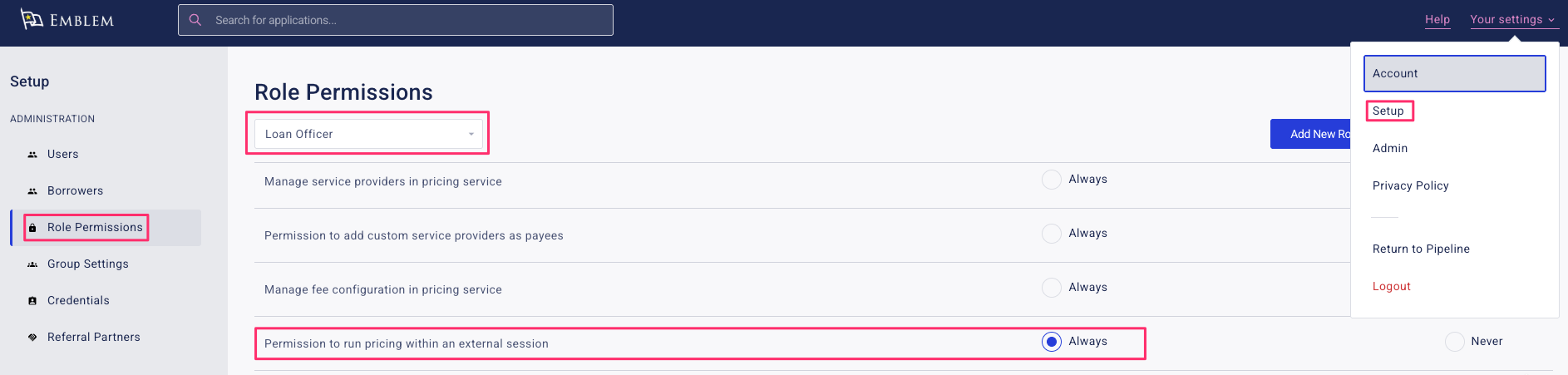
- Role-level permission: Within the Setup panel, navigate to Role Permissions, the permission "Permission to run pricing within an external session" must be set to Always for any user role that should be able to launch Scenario Mode. If set to Never, users in that role won't see the option to launch Polly.
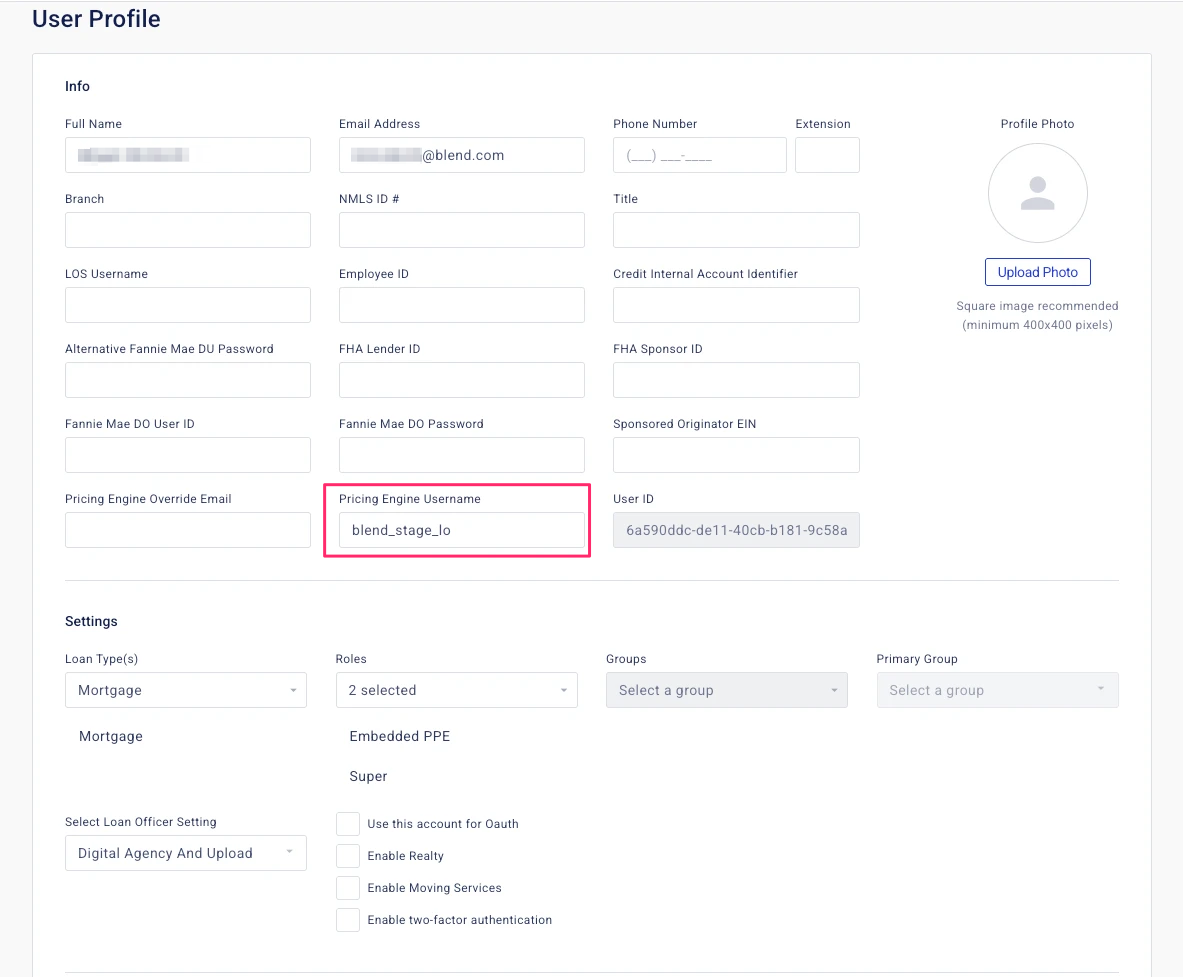
- Username configuration: Each user will have a configured user in Polly. If the user's email address in Blend matches their username in Polly, no action is needed in this step (the Pricing Engine Username override is optional). If they differ, users must add their Polly username in their Blend user profile under Pricing Engine Username.
 Note: These settings are managed by your organization's Blend Administrator, not by individual loan officers. If a loan officer doesn't see the option to launch Polly, check with your Admin to confirm all settings above are enabled for that user's role.
Requirements to use Scenario Mode
To use Scenario Mode, the following must be true for your organization:
Your pricing engine must be Polly.
Loan Scenarios must be enabled in your Blend environment. (Sharing scenarios with the borrower is optional.)
Scenario Mode must be enabled for your organization, and permitted for the applicable user roles - see Roles & Permissions above.
Each loan officer must have their Polly username on file in their Blend user profile, under Pricing Engine Username.
 Note: If a loan officer's email address in Blend already matches their Polly username, no additional setup is needed for that user. The Pricing Engine Username field is only required when the two differ.
 Note: Polly usernames are case-sensitive. If a loan officer can't authenticate into a Scenario Mode session, double check that the username entered in Blend exactly matches their Polly username, including capitalization.
Launching Scenario Mode from a loan
Open a loan in Blend (or click Check Rates from the pipeline - see Using Check Rates below).
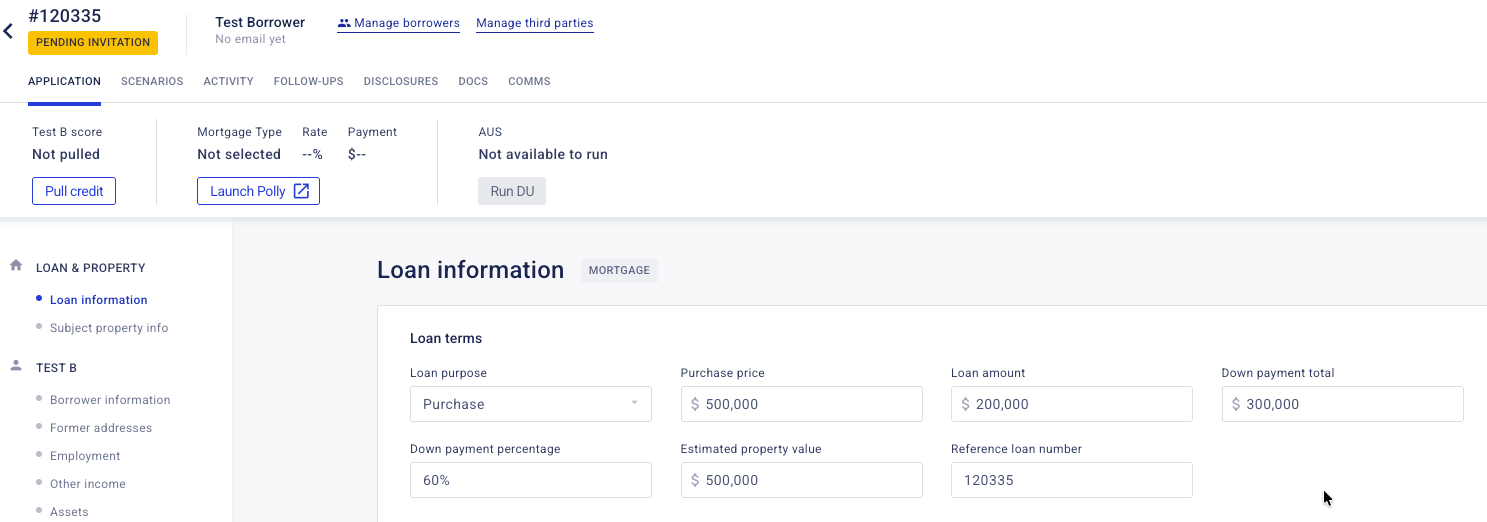
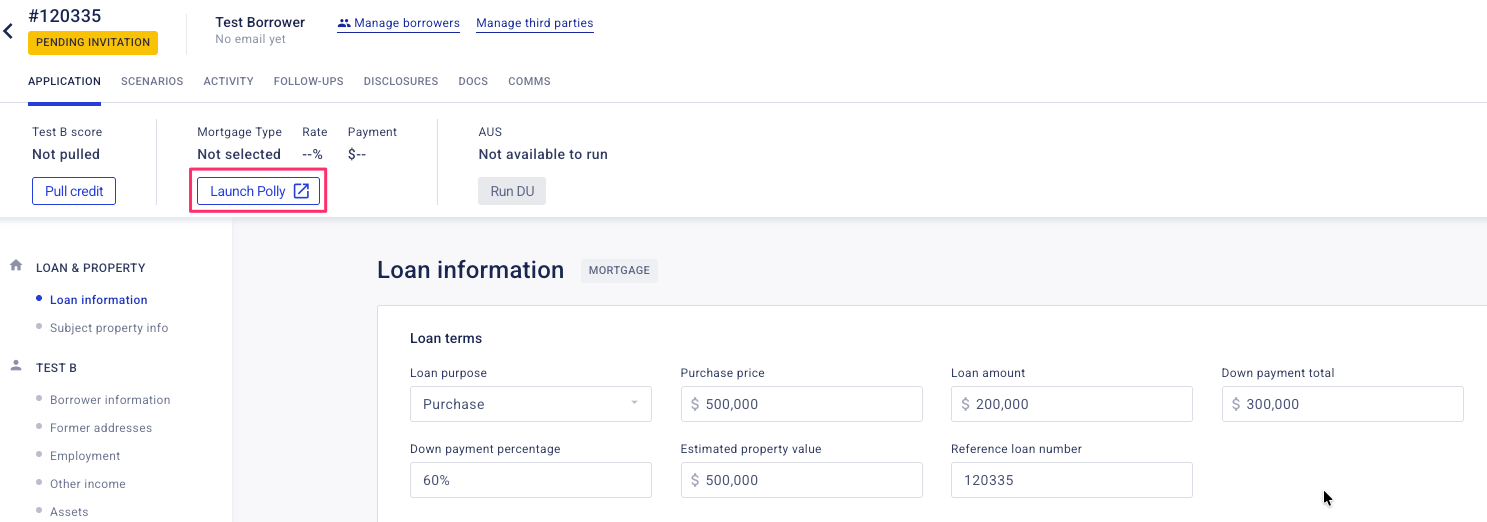
Click Launch Polly (your organization may use different button text).
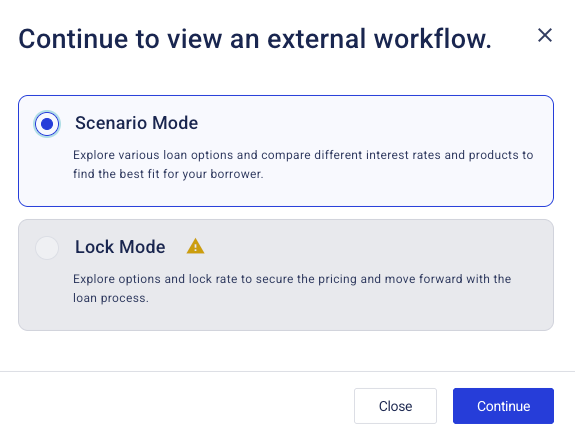
Select Scenario Mode from the mode selection screen.
Polly opens in a new browser tab with basic loan information already filled in.
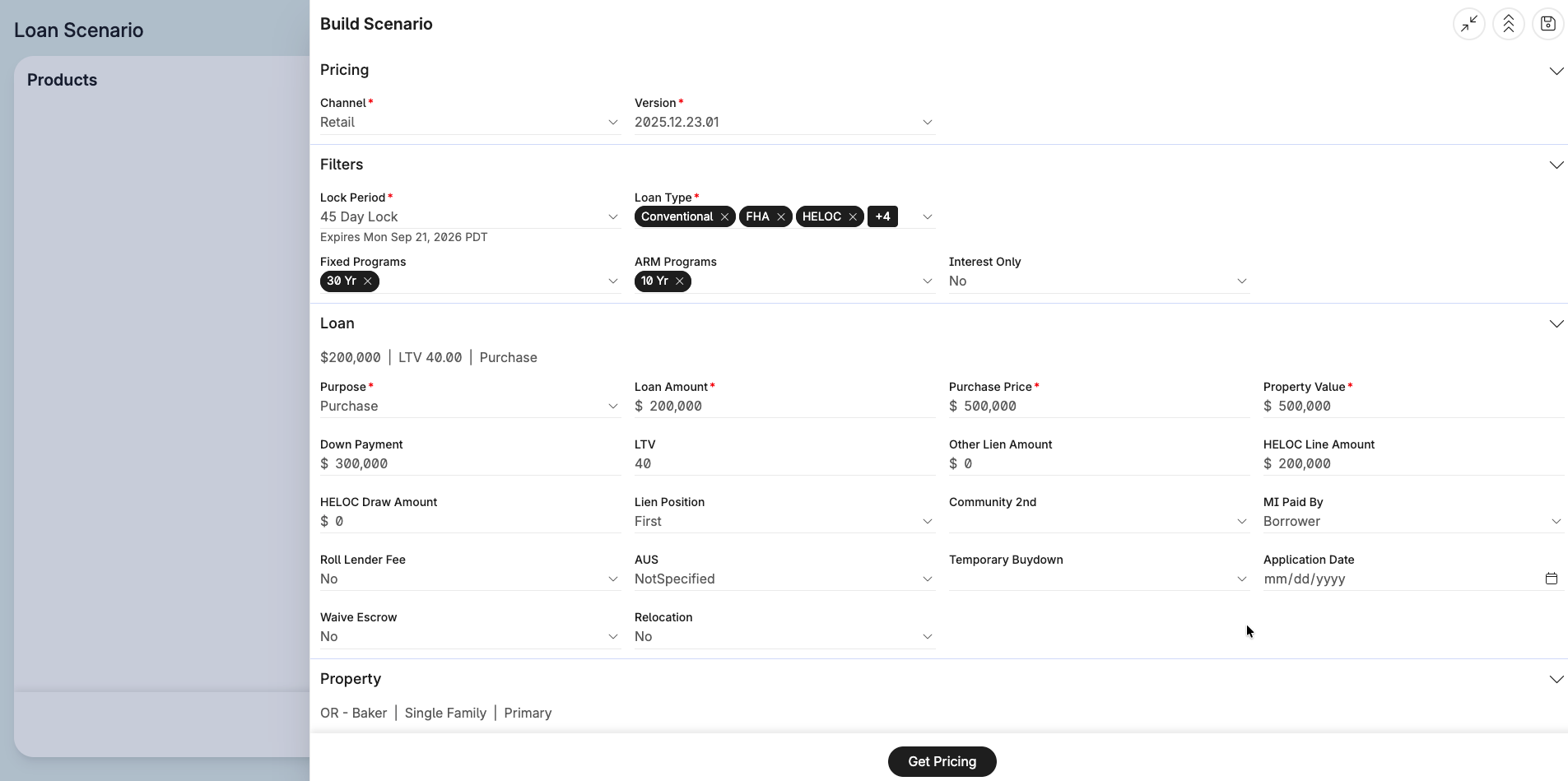
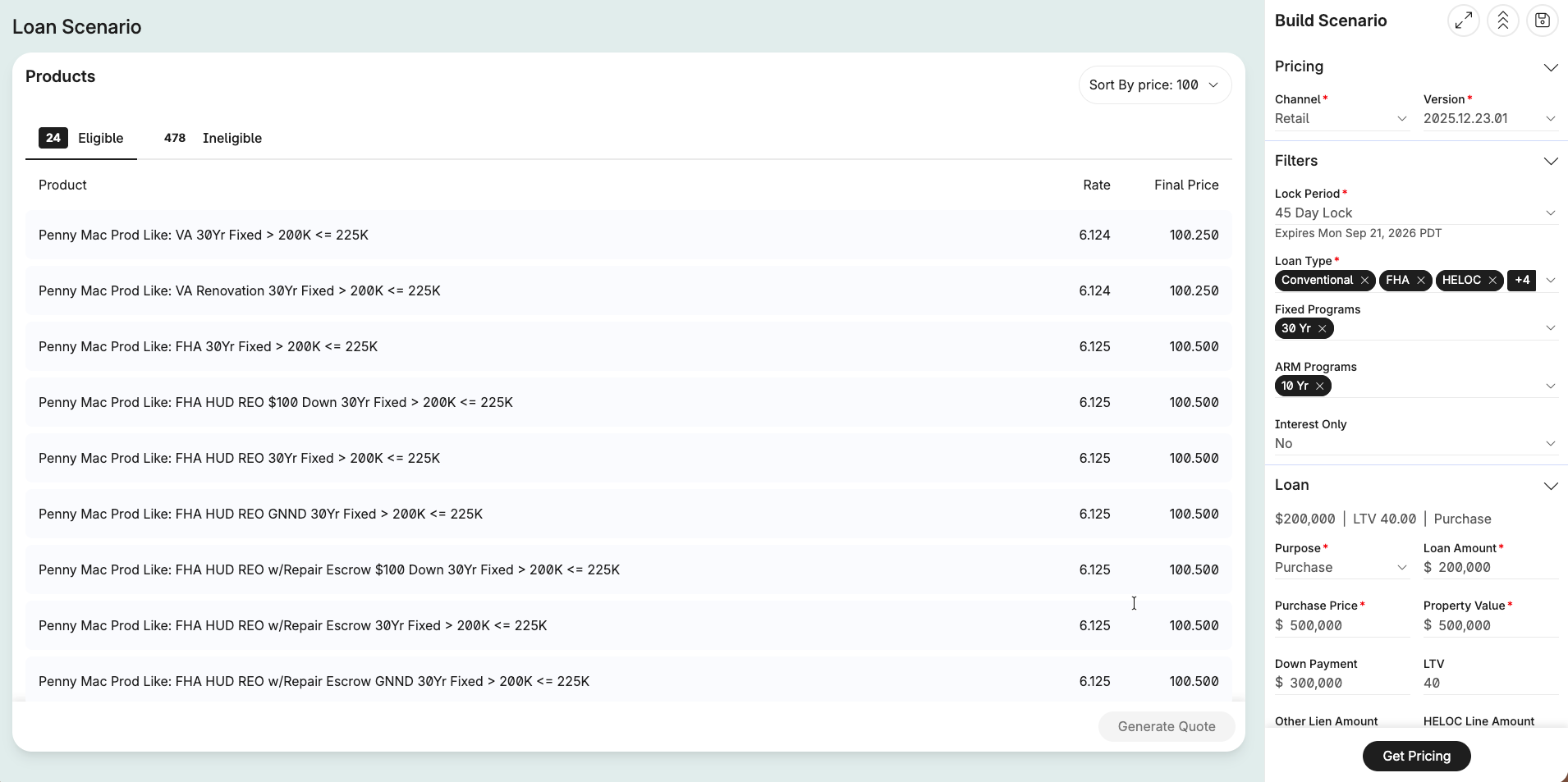
Browse products and rates in Polly, adjusting details like loan amount or down payment as needed.
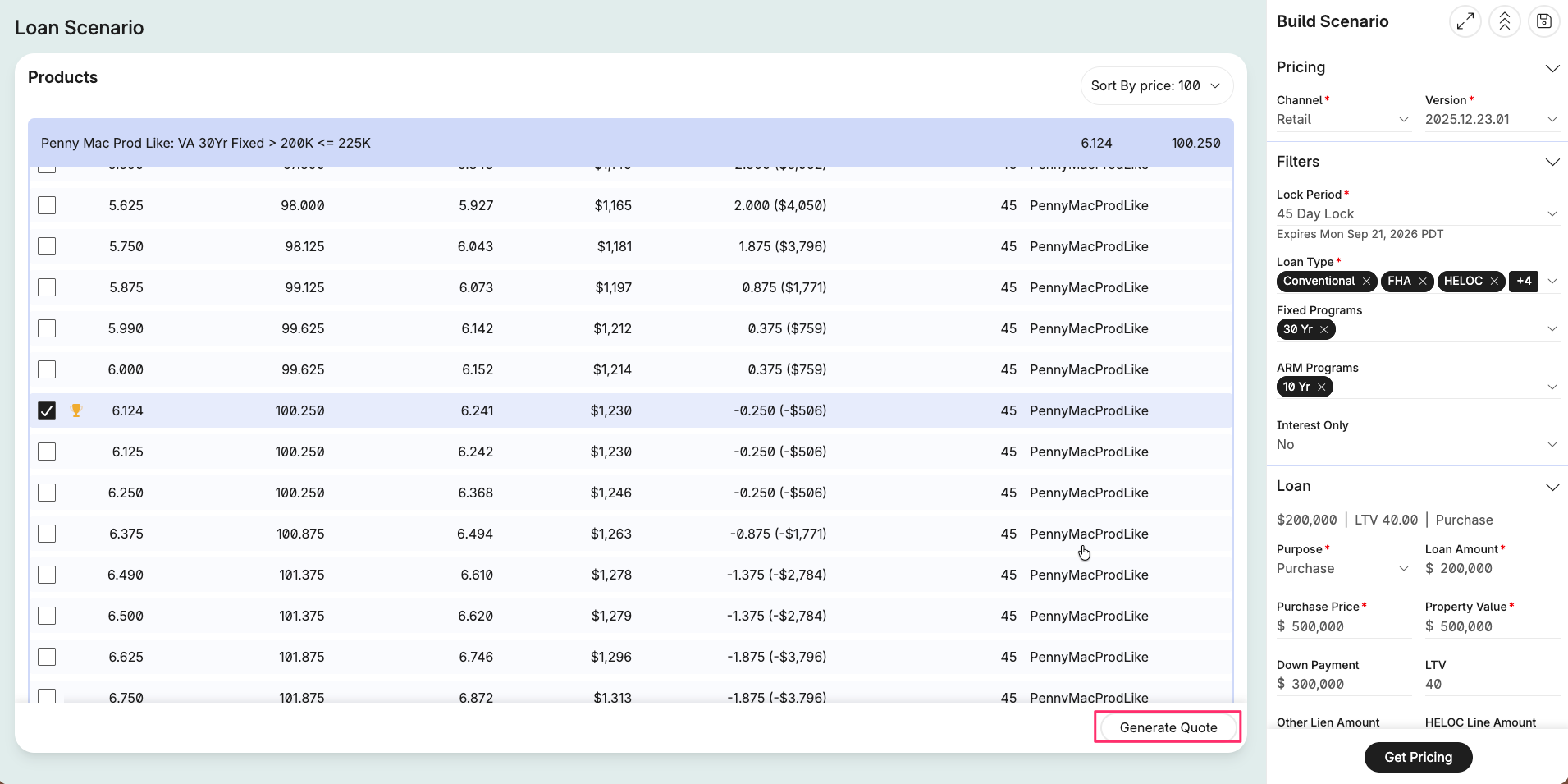
Click Generate Quote in Polly to save up to 6 product scenarios.
Return to the Blend tab and refresh the loan, the scenarios you generated will now appear in the loan's Scenarios section.
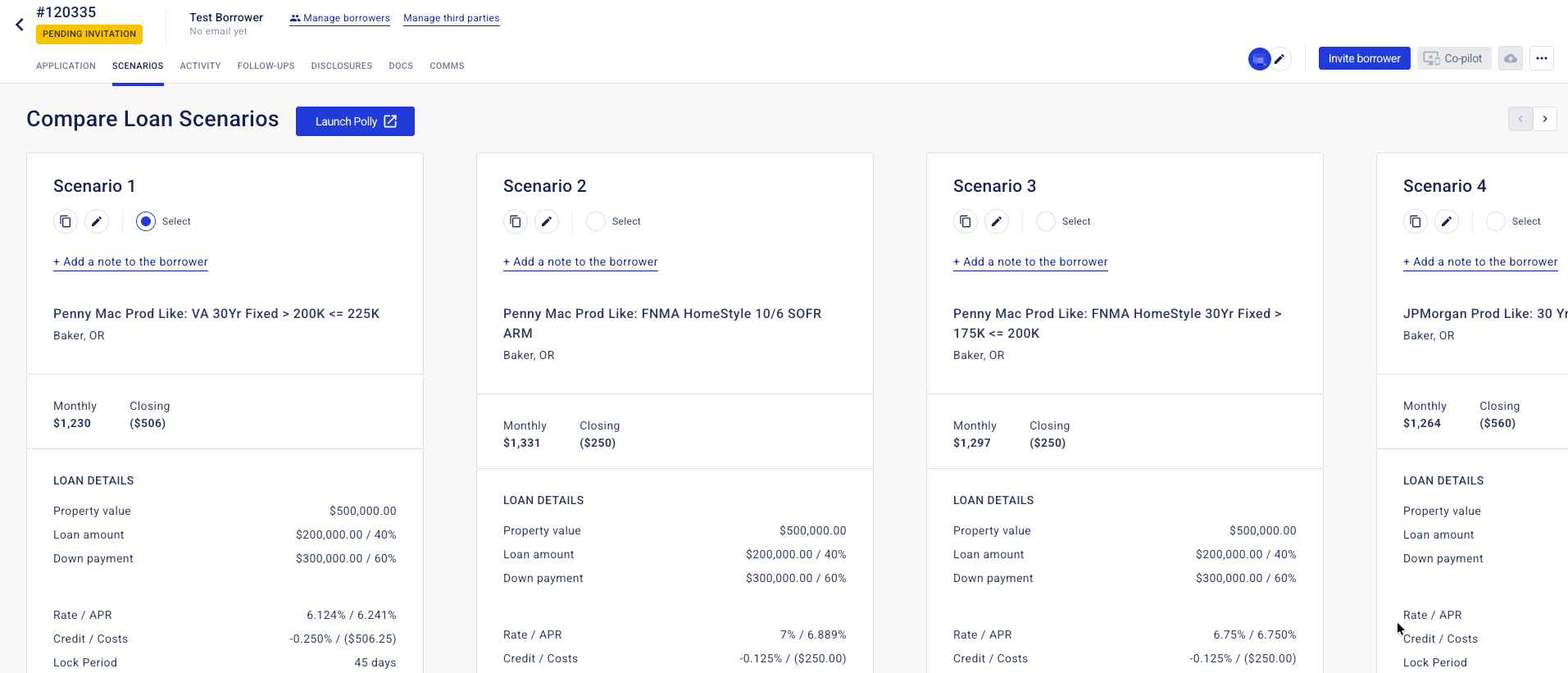
 Note: Loan officers can repeat this process as many times as needed. Each time new quotes are generated, they replace the previous set of scenarios. If a loan officer closes the Polly tab before generating a quote, nothing is created, they can simply relaunch Polly and try again.
Reviewing Loan Scenarios in Blend
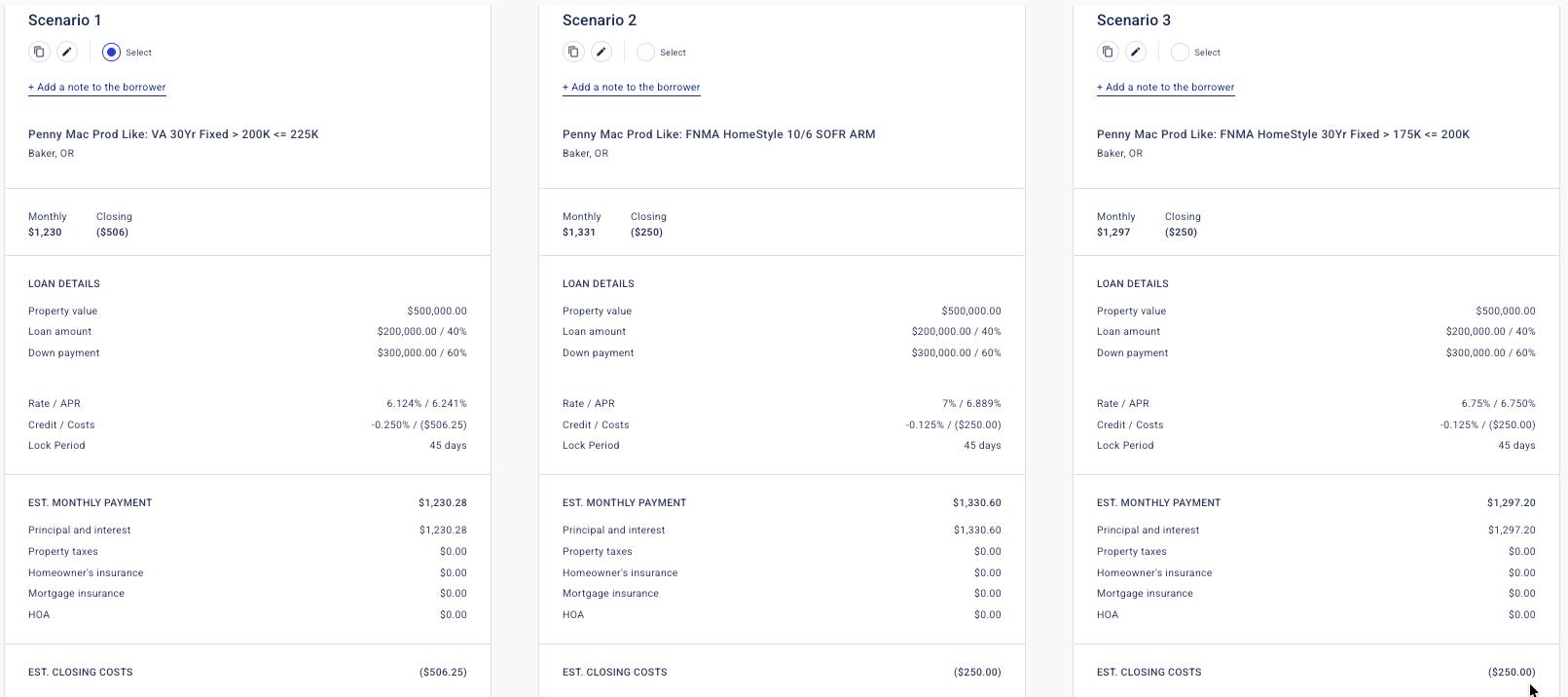
Once a loan officer generates quotes in Polly, the Scenarios section of the loan in Blend will display:
Product details - up to 6 scenarios, each showing rate, term, and monthly payment.
APR - calculated automatically by Blend for each scenario.
 Note: Scenario Mode is a loan officer-facing tool. Borrowers don't interact with Polly directly, see Borrower Visibility below for what borrowers can see.
Using Check Rates
Check Rates is a view-only version of Scenario Mode, accessible directly from the pipeline. It's designed for quick pricing conversations that happen before a borrower has started a full loan application.
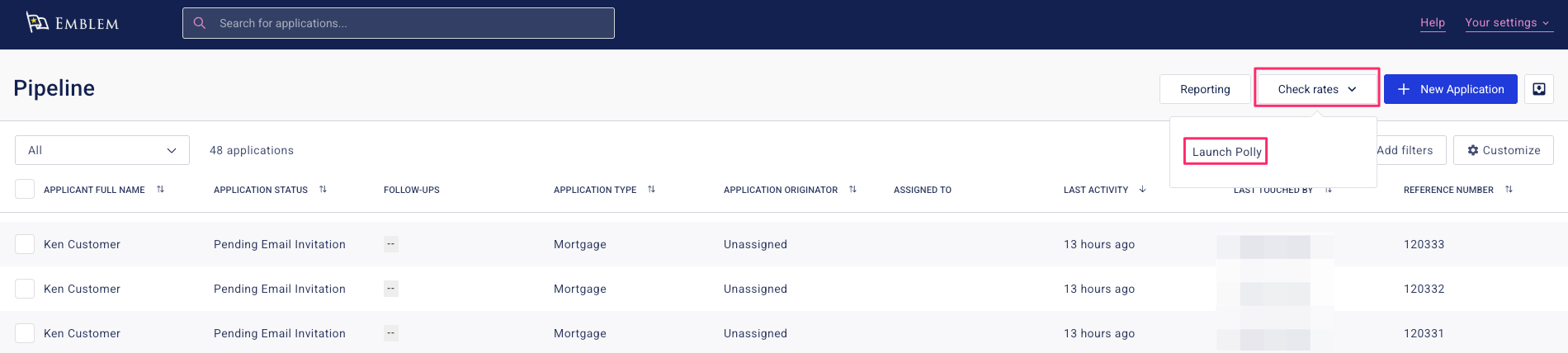
Click Check Rates from the pipeline view, then select Launch Polly.
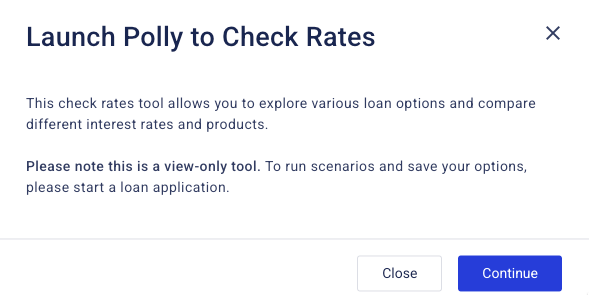
Click Continue on the confirmation modal.
Polly automatically launches in Scenario Mode. Enter basic loan details and click Get Pricing to generate pricing options.
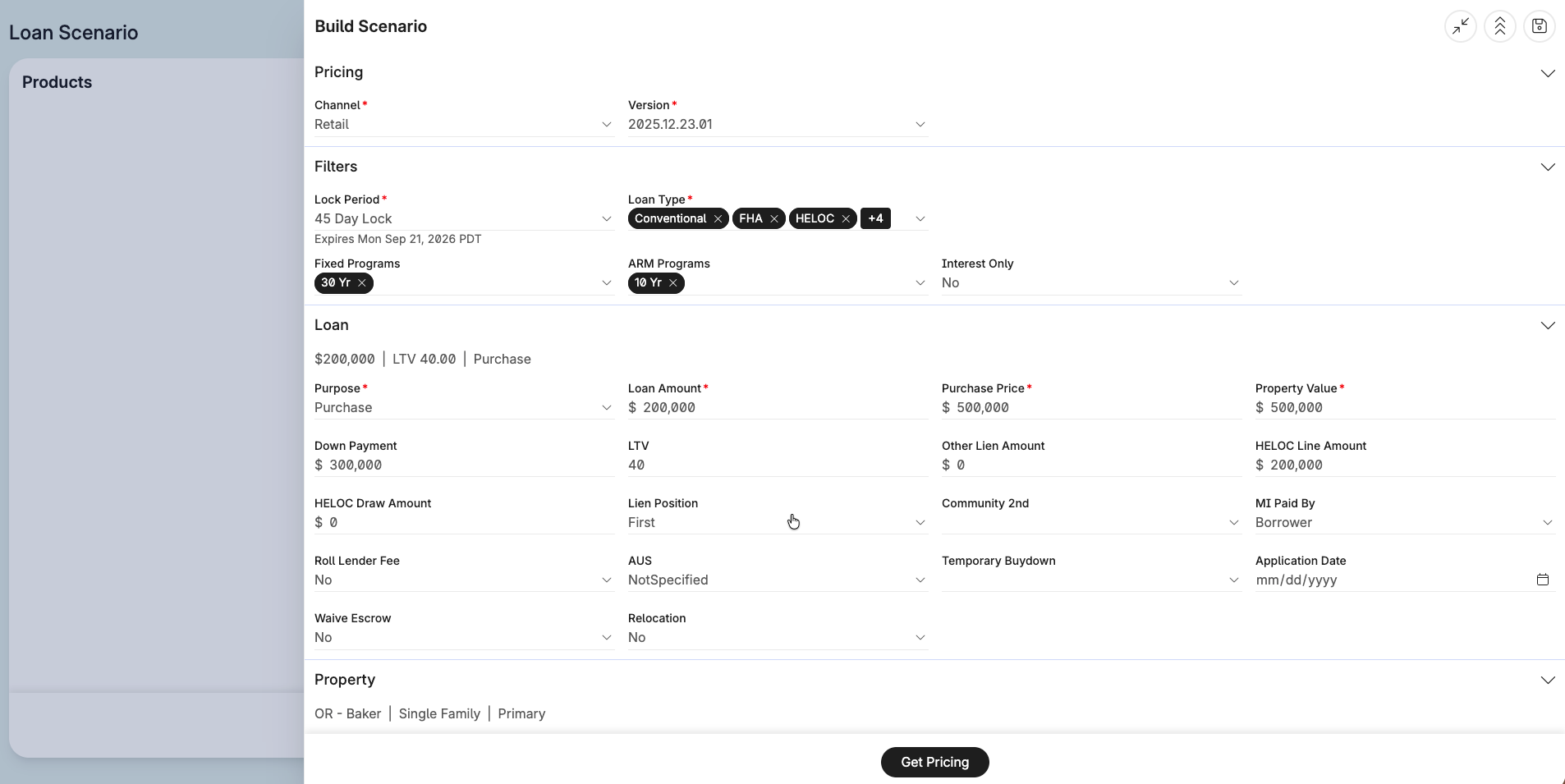
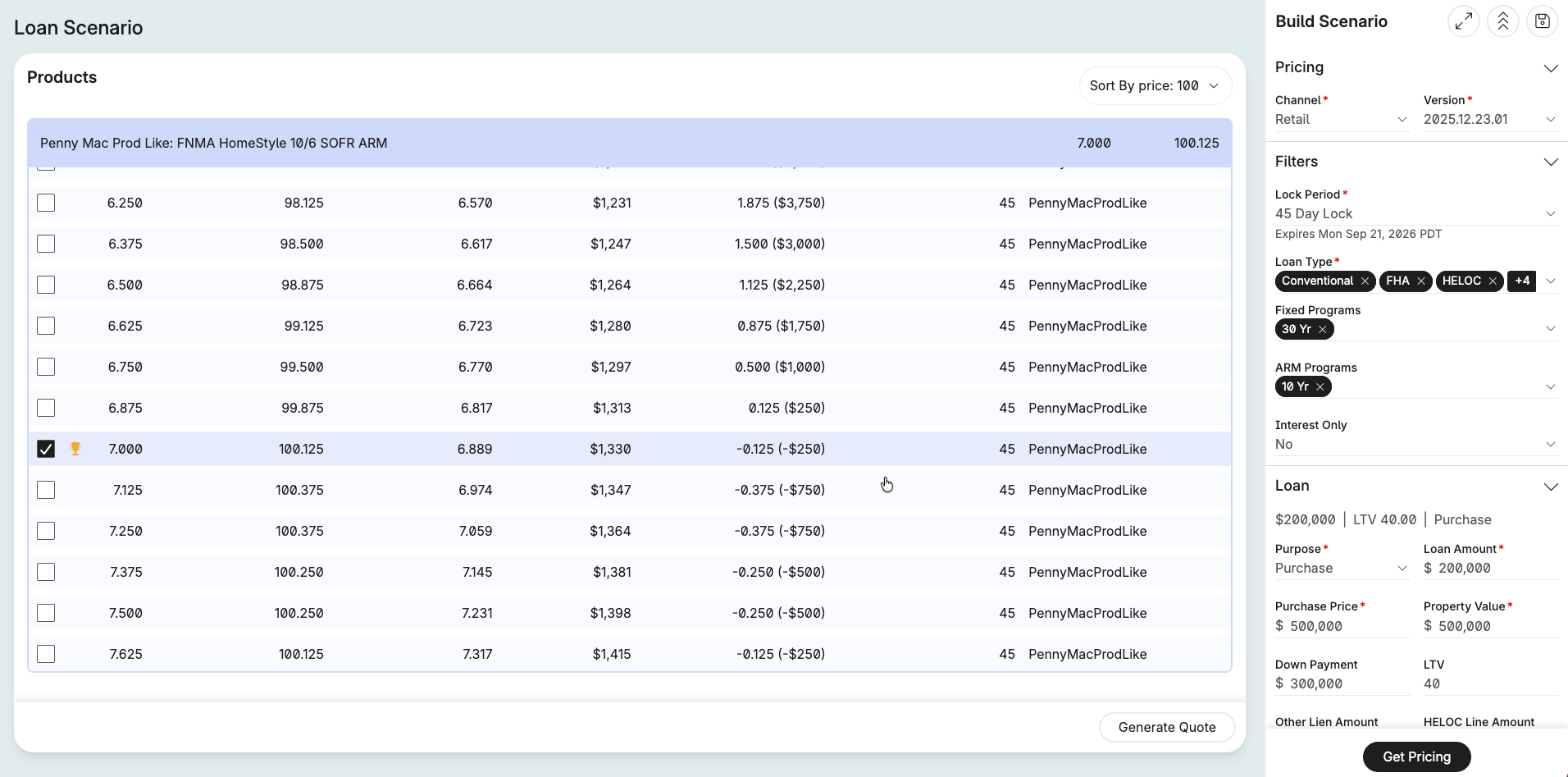
 Note: Check Rates does not create a loan application. It's intended for quick, informal rate conversations. For example, a borrower calls asking about current rates for a $400,000 purchase; the loan officer clicks Check Rates, enters basic info, and can provide accurate pricing in real time.
Borrower Visibility
Borrowers do not interact with Polly directly at any point during Scenario Mode. If a loan officer chooses to share Loan Scenarios with the borrower, the resulting product options will be visible in the borrower's Blend portal, but the borrower will never see or use Polly's interface itself.
Common Questions
Can we use this with a pricing engine other than Polly? Scenario Mode currently supports Polly. Optimal Blue is available as an alternative for select customers on a case-by-case basis. If you use a different pricing engine, contact your Blend representative to discuss available options.
Do we need an LOS integration for Scenario Mode? No. Scenario Mode works without any LOS integration or loan export. An LOS integration will be required for the upcoming Lock Mode enhancement, but not for Scenario Mode.
Can loan officers use Scenario Mode more than once on the same loan? Yes. Loan officers can run Scenario Mode as many times as needed to explore different options, and can later move to Lock Mode on the same loan once it becomes available. Each new set of Scenario Mode quotes replaces the previous scenarios.
What happens if the loan officer closes the browser tab before generating a quote? Nothing is created or saved. The loan officer can simply relaunch Polly and try again.
What if Polly is temporarily unavailable? If Polly can't be reached, the loan officer will see an error message when trying to launch a session. They can try again shortly, or contact support if the issue persists.
What's the difference between Scenario Mode and Blend's built-in pricing? Blend's native pricing experience is built and maintained directly by Blend. Scenario Mode instead opens Polly's full pricing interface, giving loan officers access to everything Polly offers, including new capabilities as soon as Polly releases them.
Is Lock Mode available yet? Not yet. Scenario Mode is the first phase of this integration to become generally available. Lock Mode, which will allow loan officers to lock a rate directly from Polly, is planned as a future enhancement and will require an LOS integration. We'll share more details as it becomes available.
A loan officer doesn't see the option to launch Polly, why not? Contact Blend Support to confirm Scenario Mode is enabled for your organization. Your Blend Administrator can verify that the "Permission to run pricing within an external session" policy is set to Always for that user's role. See Roles & Permissions above.
Was this article helpful?
That’s Great!
Thank you for your feedback
Sorry! We couldn't be helpful
Thank you for your feedback
Feedback sent
We appreciate your effort and will try to fix the article